 ToolPDFs
PDF Tools for Developers: Libraries, APIs, and Utilities Explained
A practical guide to PDF tools for developers: libraries, APIs, CLIs, and browser utilities for text extraction, data extraction, and PDF manipulation.
Anyone who has tried to pull structured data out of a PDF invoice, generate a batch of reports, or programmatically stamp a signature onto a contract knows that PDF is not a friendly format to work with in code. It was designed to make documents look identical everywhere, not to expose the underlying data in a clean, queryable way. That single design goal explains almost every headache developers run into, and it's why an entire ecosystem of libraries, APIs, and command-line utilities exists just to make PDFs usable in software.
This guide walks through what's actually available, how the major categories of PDF developer tools differ, and how to choose between a self-hosted library, a paid API, and a quick browser-based utility depending on what you're building.
Key takeaways
- PDF developer tools fall into a few clear categories: text/data extraction, generation, page manipulation (merge/split/rotate), forms and signatures, and OCR for scanned documents — most projects need two or three of these, not all of them.
- Open-source libraries like
pdf-lib, Apache PDFBox,pypdf, and PyMuPDF cover most programmatic needs, but licensing varies widely (MIT/Apache-2.0 vs. GPL/AGPL), which matters a lot for commercial products. - Text extraction accuracy depends heavily on how the PDF was created — a PDF exported from a word processor extracts cleanly; a scanned or poorly tagged PDF often needs OCR or layout-aware parsing.
- Cloud PDF APIs (Adobe PDF Services, Apryse, Nutrient/PSPDFKit) trade setup effort and per-document pricing for speed of integration, while self-hosted libraries trade more implementation work for full control and no per-call fees.
- For one-off tasks — extracting text from a single file, splitting a report, converting a page count — a browser-based tool is usually faster than standing up a library just to run it once.
What "PDF tools for developers" actually covers
When people search for developer PDF tools, they're usually looking for one of three things: a library to import into their codebase, an API they can call over HTTP without managing infrastructure, or a command-line utility they can script into a build pipeline or cron job. All three solve overlapping problems, but they fit very different workflows.
Libraries vs. APIs vs. command-line utilities
A library runs inside your application process. You install it as a dependency (npm install pdf-lib, pip install pypdf), call functions directly, and everything happens on your own infrastructure. This gives you full control over performance, data privacy, and error handling, but you own the maintenance burden — including keeping up with PDF spec edge cases the library doesn't handle perfectly.
An API is a hosted service you call over HTTP. You send a file (or a URL to one), the service processes it, and you get a result back. This is attractive when you don't want to manage parsing logic, fonts, or rendering engines yourself, but it means every document leaves your infrastructure, and you're paying per call or per document once you're past a free tier.
A command-line utility — think qpdf, pdftk, or mutool — is ideal for scripting, CI pipelines, or quick batch jobs where you don't want the overhead of writing application code at all. Many production systems actually use a CLI tool under the hood, shelled out from a script or a serverless function, rather than a full library.
The core categories of developer PDF work
Most real-world PDF programming falls into a handful of buckets. Knowing which bucket your problem is in narrows the tool search considerably.
Text extraction from PDF
This is the most common request and the most misunderstood. A PDF doesn't store "paragraphs" or "sentences" the way a .docx file does — it stores positioned glyphs and drawing instructions. Extracting readable text means reconstructing reading order from coordinates, which works well for simple single-column documents and badly for multi-column layouts, tables, or scanned images.
Libraries like pypdf, pdfminer.six, and PyMuPDF handle this by walking the content stream and grouping text by position. For documents with real tabular data — invoices, financial statements, forms — general text extraction often isn't enough; you need something layout-aware like pdfplumber or Camelot, which specifically try to detect table boundaries rather than just dumping text in reading order.
Data extraction from PDF (structured fields, tables, forms)
Data extraction is a step beyond text extraction: you're not just getting words out, you're mapping them to fields — an invoice number, a total, a date, a table of line items. This is where the format of the source PDF matters enormously. A PDF generated from a database template (consistent layout, same font, same coordinates every time) is far easier to extract reliably than a PDF someone scanned from a fax machine.
For consistent, templated documents, coordinate-based extraction or regex over extracted text is often sufficient. For inconsistent or scanned documents, most teams end up combining OCR with either a rules engine or a machine learning model trained for document understanding — this is a meaningfully harder problem than plain text extraction and worth scoping separately in any project estimate.
Document generation and templating
Generating PDFs programmatically — invoices, certificates, reports — usually happens one of two ways: drawing directly onto a canvas (using something like pdf-lib, ReportLab, or iText, specifying exact positions for text and shapes), or rendering HTML/CSS to PDF using a headless browser engine (Puppeteer, Playwright, or wkhtmltopdf). The canvas approach gives pixel-level control and small output files; the HTML approach is faster to build if your team already knows CSS and you don't need perfect print-level precision.
Merging, splitting, and page-level manipulation
Combining files, extracting page ranges, reordering, rotating, and deleting pages are some of the most frequently scripted PDF operations, and they're also the most mature — nearly every library and CLI tool handles them well because they don't require interpreting the content stream, just the page tree structure. qpdf, pdftk, PDFBox, and pdf-lib all do this reliably.
Forms, signatures, and redaction
Filling AcroForm fields programmatically is well supported across most libraries. Digital signatures are more involved — you're dealing with cryptographic certificate chains, timestamp authorities, and PDF-specific signature dictionaries, which is why many teams reach for a commercial library or API (like Apryse or DocuSign's API) rather than rolling their own signing logic against the ISO 32000-2 PDF specification. Redaction is similarly deceptive: visually covering text with a black box does not remove the underlying text object, which is a common and serious mistake — true redaction requires actually deleting the content stream data, not just drawing over it.
OCR for scanned documents
When a PDF is just a scanned image with no embedded text layer, none of the extraction techniques above will find anything, because there's no text to extract — only pixels. OCR engines like Tesseract (open source) or cloud OCR services convert those pixels into a text layer you can then extract normally. Accuracy depends heavily on scan quality, so it's worth testing against your actual document samples before committing to an OCR pipeline.
Comparing popular PDF developer libraries
Here's how some of the most widely used tools stack up. This isn't exhaustive, but it covers the ones developers most commonly land on.
| Tool | Language | License | Best for | Notable limitation |
|---|---|---|---|---|
| pdf-lib | JavaScript/TypeScript | MIT | Creating and modifying PDFs in Node or the browser | Limited text-extraction support |
| Apache PDFBox | Java | Apache-2.0 | Full-featured parsing, generation, forms | Heavier footprint, steeper learning curve |
| pypdf (formerly PyPDF2) | Python | BSD | Basic merge/split, metadata, simple extraction | Weaker on complex layouts and tables |
| PyMuPDF (fitz) | Python | AGPL / commercial dual license | Fast rendering, text/image extraction | AGPL terms require care in commercial products |
| pdfplumber | Python | MIT | Table and layout-aware text extraction | Slower on very large files |
| Mozilla PDF.js | JavaScript | Apache-2.0 | Rendering PDFs in-browser | Not built for heavy server-side extraction |
Poppler / pdftotext |
C++ (CLI bindings in many languages) | GPL-2.0 | Fast, reliable text extraction via CLI | GPL licensing affects distribution |
| qpdf | C++ (CLI) | Apache-2.0 | Merging, splitting, linearizing, repairing | Not for text extraction or generation |
| iText | Java/.NET | AGPL / commercial | Enterprise-grade forms, signatures, PDF/A | Commercial license required for most closed-source use |
A pattern worth noticing: several of the most capable tools (PyMuPDF, iText, Ghostscript) use AGPL or dual licensing, which is a deliberate business model — free for open-source and personal use, paid for anyone shipping closed-source commercial software. Always check the license before you build a core product feature on top of one of these, not after.
Choosing between self-hosted libraries and PDF APIs
The honest tradeoff is effort versus control. If you're processing a handful of documents in an internal tool, a hosted API (Adobe PDF Services, Apryse's API, Nutrient) gets you working code in an afternoon and offloads the parsing complexity entirely. If you're processing thousands of documents a day, handling sensitive data, or need the process to run fully offline, a self-hosted library or CLI tool avoids per-document fees and keeps files inside your own infrastructure — at the cost of you owning the edge cases.
A reasonable rule of thumb: prototype with an API to validate the feature is worth building, then evaluate migrating to a self-hosted library once volume or privacy requirements make the per-call pricing or third-party data exposure a real concern.
Licensing and legal considerations developers actually hit
This is the part most tutorials skip, and it's the one that causes real production headaches later. Three license families show up repeatedly in the PDF tooling space:
- Permissive (MIT, Apache-2.0, BSD) — use freely, including in closed-source commercial products, with minimal obligations beyond attribution.
pdf-lib, PDFBox, andpypdffall here. - Copyleft (GPL) — fine to use as a standalone CLI tool you shell out to, but distributing modified source or linking it directly into proprietary code can trigger obligations to release your own source. Poppler is the common example.
- Dual-licensed (AGPL + commercial) — free for open-source projects, but SaaS or closed-source commercial use typically requires purchasing a commercial license. PyMuPDF and iText both work this way, and it's easy to miss until a legal review flags it.
None of this is a reason to avoid these tools — they're excellent — but it's worth confirming license terms against how your product is actually distributed, especially for anything running as part of a paid SaaS backend.
Performance and scale considerations
Text-heavy extraction on large PDFs (hundreds of pages, embedded images) can be memory-intensive, particularly with libraries that load the entire document into memory rather than streaming it. If you're processing files in a serverless environment with tight memory and execution-time limits, test with your largest realistic file before assuming a library will hold up in production — a tool that works fine on a 10-page sample PDF can behave very differently on a 300-page scanned report.
Batch jobs also benefit from CLI tools like qpdf or Ghostscript for page-level operations (splitting, compressing, repairing), since they're often faster and lighter than spinning up a full library instance per file.
Browser-based and client-side PDF processing
A newer category worth knowing about: PDF processing that runs entirely in the browser using WebAssembly builds of engines like Mozilla's PDF.js or MuPDF-derived WASM ports. Instead of uploading a file to a server, the parsing, rendering, or manipulation happens client-side in JavaScript. This matters for two reasons: it removes a network round-trip for simple operations, and it keeps sensitive document contents off a remote server entirely — a meaningful difference for legal, medical, or financial documents that shouldn't leave a user's machine at all.
For developers who don't want to write and maintain integration code for a one-off task — checking what's inside a PDF, pulling text from a single file, splitting a report before writing the real automation — a set of ready-made browser-based developer utilities can save the setup time entirely, since there's nothing to install and no server round-trip to account for.
A practical decision framework
When scoping a PDF feature, it helps to answer these questions before picking a tool:
- Is the source PDF templated or unpredictable? Templated documents make extraction and data mapping dramatically easier; unpredictable scans usually mean you need OCR in the pipeline.
- How much volume are you processing? A handful of documents a day tolerates an API's per-call pricing; thousands a day usually justifies self-hosting.
- Does the data need to stay off third-party servers? If yes, rule out cloud APIs early and focus on self-hosted libraries or client-side processing.
- What license terms apply to your product? Confirm AGPL/GPL implications before building a core feature on a dual-licensed library.
- Is this a one-off task or a recurring pipeline? A single extraction or conversion rarely justifies writing and maintaining integration code — a CLI tool or a browser utility is usually faster.
Frequently asked questions
What's the best free library for extracting text from a PDF?
pypdf and pdfminer.six (or pdfplumber if you need table structure) are solid free, permissively licensed options in Python; pdf-lib and PDF.js cover similar ground in JavaScript, though PDF.js is oriented more toward rendering than raw extraction.
Do I need OCR for PDF text extraction?
Only if the PDF is a scanned image with no embedded text layer. If you can already select and copy text in a PDF viewer, the document has a text layer and standard extraction libraries will work without OCR.
Is Adobe's PDF API better than open-source libraries?
It depends on your priorities — Adobe's PDF Services API offers strong out-of-the-box accuracy and no infrastructure to manage, but you pay per document and files leave your servers, whereas open-source libraries require more setup but keep processing in-house and avoid per-call costs.
Can I extract data from a PDF table reliably?
Reliability depends on how the table was created — tables from a consistent template extract well with layout-aware tools like pdfplumber or Camelot, while irregular or scanned tables often need OCR plus manual validation, since automated table detection is still imperfect on messy layouts.
Is it safe to redact a PDF just by drawing a black box over the text?
No — visually covering text does not delete the underlying text object, and the original content is often still recoverable by copying text or inspecting the file; true redaction requires removing the content itself, not just obscuring it visually.
When the task doesn't justify writing integration code
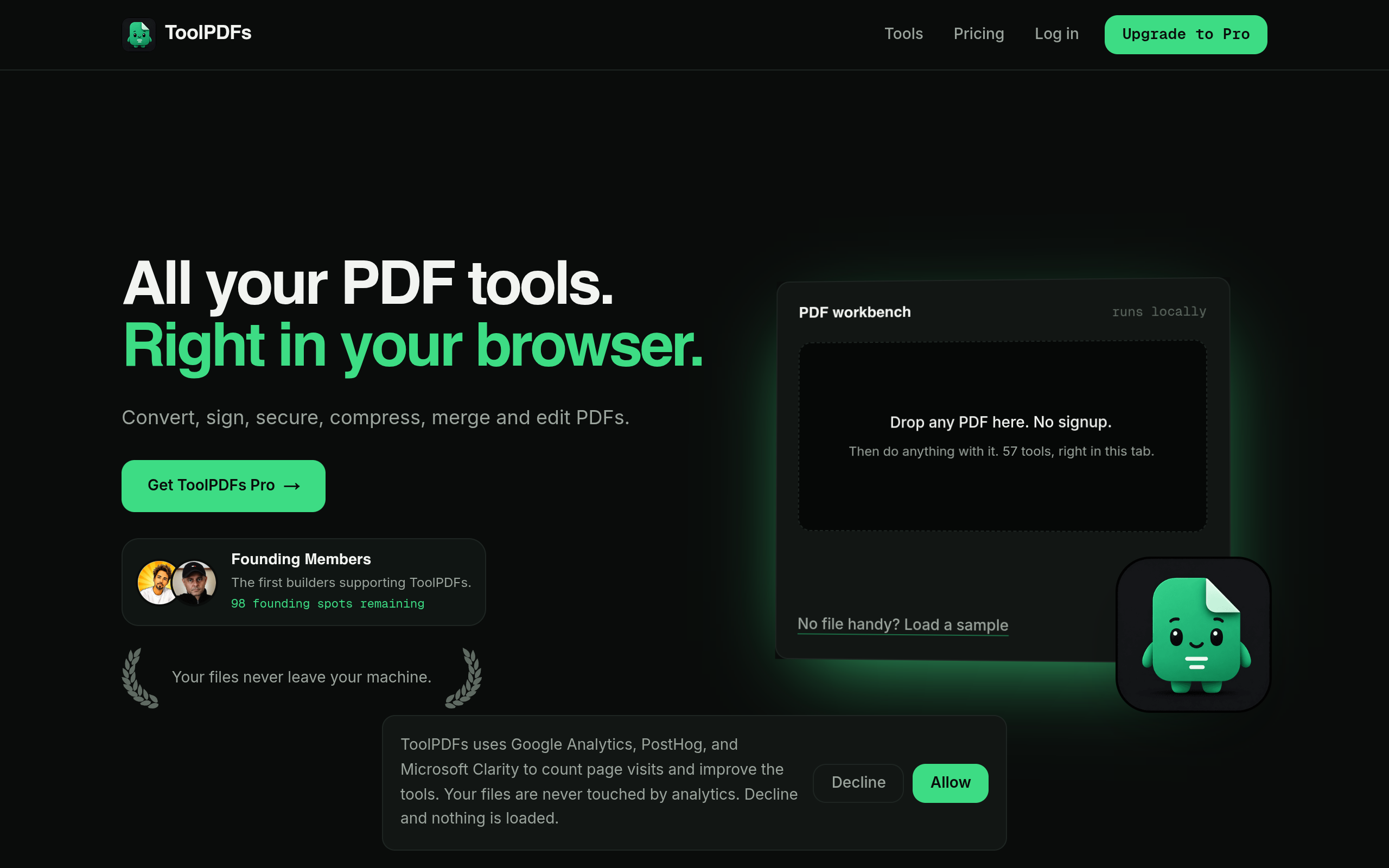
Not every PDF job needs a library import, an API key, and error-handling code — sometimes it's just one file that needs its text pulled out, split, or converted before you move on. ToolPDFs is built for exactly that gap: a browser-based workspace with 57 free and paid tools covering conversion, organizing, compression, signing, security, and developer-oriented text and data utilities. Files are processed locally in the browser instead of being uploaded to a server, which matters for developers and privacy-conscious professionals who'd rather not send a document off to a third party for a five-second task. It's aimed at freelancers, solopreneurs, small business professionals, and developers who need a quick, no-signup way to handle a document task, with a free daily allowance plus monthly, annual, and lifetime plans for heavier use.
Try It In Your Browser
Fast, Private PDF Tools
Access our full suite of free in browser PDF utilities. No server uploads, total privacy.