 ToolPDFs
PDF Editing Tools for Freelancers: 9 Options Worth Comparing Before You Commit
Compare the best PDF editing tools for freelancers, from free browser editors to paid suites, plus a framework for matching the tool to your actual workflow.
Freelancers deal with PDFs constantly, whether that's a signed contract, a client invoice, a scope-of-work document, or a scanned W-9 that needs a quick fix before it goes back out the door. The problem isn't finding a PDF editor. A search turns up dozens. The real problem is figuring out which of those tools actually fits a freelance workflow: fast, occasional, often on someone else's deadline, and frequently involving files you don't want sitting on a stranger's server.
This guide breaks down the PDF editing tools freelancers, remote workers, and independent contractors actually reach for, what each one is genuinely good at, and how to decide which one deserves a permanent spot in your workflow instead of a one-time visit.
Key Takeaways
- Most freelance PDF work falls into a handful of repeatable tasks — signing, filling forms, compressing for email, merging deliverables, and light text edits — so pick tools around those tasks, not around feature lists.
- Free tiers are usually enough for occasional use; paid plans start paying for themselves once you're editing PDFs daily or need batch processing and audit trails for signatures.
- Where a file is processed matters as much as what the tool can do — uploading signed contracts or client financial documents to a remote server carries different risk than editing them locally in your browser.
- Quick edits (adding a signature, fixing a typo, rotating a page) and heavy edits (restructuring layouts, running OCR on scanned contracts) call for different tools, and trying to force one tool to do both often wastes time.
- Test the free version of any PDF tool with a real client file before paying for anything — daily limits, watermarks, and file-size caps only show up once you're actually using the product.
What Freelance Work Actually Demands From a PDF Editor
Freelancers don't need the same thing from a PDF editor that a legal department or a publishing house does. The workload is different: high frequency, low complexity, tight turnaround. A typical week might involve signing a contract, sending an invoice, compressing a portfolio PDF so it fits an email attachment limit, and filling out a client's intake form — none of which require the full editing depth of something built for redlining 200-page filings.
Before comparing tools, it helps to map out what you're actually doing repeatedly:
| Common freelance task | What the tool needs to do | How often it usually comes up |
|---|---|---|
| Signing a contract or NDA | Add a legally usable e-signature | Weekly |
| Sending an invoice | Fill form fields, add text, export cleanly | Weekly |
| Sharing a proposal or portfolio | Compress file size without degrading images | Weekly to monthly |
| Combining multiple documents | Merge PDFs in a specific order | Monthly |
| Fixing a typo in a finished PDF | Edit existing text directly | Occasional |
| Submitting tax or intake forms | Fill flat or fillable form fields | A few times a year |
| Redacting sensitive client data | Permanently remove text or images, not just cover it | Occasional but high-stakes |
Notice that most of these are quick PDF edits, not deep document overhauls. That distinction should drive the tool decision more than brand recognition does.
The Best PDF Editing Tools for Freelancers in 2026
Here's how the tools freelancers most commonly turn to actually compare, based on what each one is built to do well.
Adobe Acrobat (Pro and Standard)
Acrobat remains the reference point for PDF editing because Adobe effectively created the modern PDF workflow, and the PDF file format itself is standardized under ISO 32000, a spec Adobe originally authored. Acrobat handles full text editing, OCR, redaction, form building, and legally binding e-signatures through Adobe Sign. The tradeoff is cost and complexity — it's a subscription product with a learning curve that's overbuilt for someone who just needs to fix a date on an invoice twice a month.
Smallpdf
A browser-based suite covering conversion, compression, merging, and light editing. It's approachable and fast for one-off tasks, but the free tier caps daily usage and files are processed on Smallpdf's servers, which matters if you're routinely handling client NDAs or financial documents.
iLovePDF
Similar positioning to Smallpdf — a broad toolkit of converters and mergers with a clean interface. Strong for batch compression and merging multiple invoices into a single deliverable, though heavier editing features sit behind a paid plan.
Sejda
Sejda stands out for in-browser text editing that feels closer to a desktop editor than most web tools. Its free tier allows a handful of tasks per day with reasonable file-size limits, making it a solid pick for freelancers who need to edit existing text in a PDF rather than just annotate or convert it.
PDFescape
A long-running free online editor known for form filling and annotation. It's serviceable for quick markups but shows its age in interface polish, and the free tier carries ads.
Foxit PDF Editor
A desktop-grade alternative to Acrobat with one-time purchase licensing available, which appeals to freelancers who'd rather avoid another monthly subscription. Strong OCR and redaction tools make it a reasonable choice for anyone regularly digitizing scanned contracts.
Xodo
Free and cross-platform, with particular strength in annotation and mobile use — useful for freelancers reviewing a contract redline from a phone between client calls. Editing depth is thinner than Acrobat or Foxit.
PDF-XChange Editor
A Windows desktop tool with one of the most feature-dense free tiers on the market: form filling, commenting, OCR, and basic editing without a subscription. The catch is it's Windows-only and the free version stamps a small watermark on saved files unless licensed.
Browser-based, local-processing tools
A newer category of tools processes files directly in the browser instead of routing them through a remote server first. ToolPDFs is one example, bundling dozens of conversion, compression, signing, and security tools into a single workspace where files never leave the user's device during editing — a distinction that matters most for freelancers handling client-confidential paperwork.
| Tool | Runs locally in browser | Free tier limits | E-signature support | Best for |
|---|---|---|---|---|
| Adobe Acrobat | No (cloud-connected) | Trial only | Yes, via Adobe Sign | Full-featured editing, legal documents |
| Smallpdf | No | Daily task cap | Yes, basic | Quick conversions and compression |
| iLovePDF | No | Daily task cap | Yes, basic | Batch merging and compression |
| Sejda | No | ~3 tasks/day, file size cap | Yes, basic | In-browser text edits |
| PDFescape | No | Ad-supported free tier | Limited | Form filling |
| Foxit PDF Editor | No (desktop) | Trial only | Yes | OCR-heavy work, redaction |
| Xodo | No | Generous free features | Basic | Mobile annotation and review |
| PDF-XChange Editor | No (desktop) | Watermarked free tier | Limited | Windows users wanting a free desktop tool |
| ToolPDFs | Yes | Daily free allowance | Yes | Privacy-conscious quick edits and conversions |
No single tool wins every category. The honest answer to "what's the best PDF editor for freelancers" depends on whether your priority is editing depth, cost, mobile access, or keeping files off someone else's server.
Free vs. Paid: When a Free Plan Actually Covers Freelance Work
Free PDF tools are genuinely usable for freelance work most of the time — the friction shows up around three things: daily usage caps, file-size limits, and watermarks on the output. If you're signing one contract a week and compressing a portfolio PDF every so often, a free tier rarely gets in the way.
The calculation changes once you're doing this daily, working with multiple clients simultaneously, or need features like batch processing, audit-trail signatures, or permanent redaction rather than a simple black box over text. At that point, paid plans start earning their cost back in time saved rather than features unlocked. Pricing structures across this category have converged on a similar pattern — monthly access for occasional heavy use, annual billing for a discount if you're committed, and increasingly, one-time lifetime purchases aimed at people who'd rather not add another recurring subscription line. ToolPDFs, for example, structures its pricing this way, alongside a free daily allowance for lighter use.
A practical rule: run your actual client files — not test documents — through a tool's free tier for two weeks before paying for anything. Limits that look generous in marketing copy often reveal themselves differently once you're using the tool the way you actually work.
Privacy and Client Confidentiality: Why Upload Location Matters
Most mainstream PDF tools work by uploading your file to a server, processing it there, and sending back the result. For a lot of use cases that's a non-issue. But freelancers routinely handle documents that carry real confidentiality obligations — signed NDAs, client financial statements, contracts with indemnification clauses, or scanned identity documents for onboarding forms.
Under frameworks like the GDPR, and under most standard freelance NDAs regardless of jurisdiction, the obligation to protect a client's data doesn't disappear just because you routed it through a convenient online tool. If a contract explicitly restricts where a document can be stored or transmitted, uploading it to a third-party cloud service to fix a typo can technically breach that clause, even if nothing goes wrong.
This is where the distinction between cloud-processed and locally-processed tools actually matters in practice, not just in principle. A tool that edits the PDF inside your browser, without transmitting the file to a server, structurally can't leak that document in transit the way an upload-based tool theoretically could. For routine internal drafts this distinction is academic. For anything with a confidentiality clause attached, it's worth checking before you upload.
On the recordkeeping side, freelancers in the US also have a practical reason to keep certain PDFs — invoices, receipts, signed 1099s — organized and unaltered: the IRS recommends retaining business records for several years, and editing tools that leave clean, unwatermarked output make that archive easier to trust later.
Quick PDF Edits vs. Full Document Overhauls: Two Different Workflows
It's worth separating these explicitly because a lot of frustration with PDF tools comes from using the wrong one for the job.
Quick edits — adding a signature, fixing a date, rotating a page, merging three files into one, compressing a file before email — are the majority of freelance PDF work. These are well-suited to browser-based tools with no install and minimal setup. Speed matters more than depth here; a tool that takes 90 seconds to open, edit, and export beats one with more features but a five-minute learning curve for a task you do twice a month.
Full overhauls — restructuring a scanned contract's layout, running OCR across a 40-page document, extracting tables into a spreadsheet, or redacting sensitive fields across dozens of files — genuinely benefit from desktop-grade software like Acrobat or Foxit, which are built for depth rather than speed. Trying to do this kind of work in a lightweight browser tool usually means fighting the tool instead of finishing the task.
Most freelancers end up needing both categories at different points, which is why relying on a single all-purpose tool for everything often means overpaying for depth you rarely use, or underpowering yourself for the one big document that needs real editing tools.
PDF Tools Remote Workers and Developers Lean On Beyond Basic Editing
Freelance and remote work rarely stops at editing a single PDF. The adjacent tasks matter just as much:
- Format conversion — turning a PDF into an editable Word or Excel file, or converting a Word deliverable into a client-ready PDF.
- Compression — shrinking a portfolio or design deck below an email attachment limit without visibly degrading it.
- Merging and splitting — combining multiple invoices into one file for a client, or splitting a long contract into signature-ready sections.
- OCR — converting scanned paper contracts into searchable, editable text.
- Metadata scrubbing — stripping author names, timestamps, and edit history from a document before sending it externally.
- Data and developer utilities — freelance developers in particular often need adjacent tools for converting between JSON, CSV, and other data formats alongside their PDF work, rather than switching between five unrelated apps. A broader library of document and developer utilities covering these adjacent formats saves the context-switching that comes from bouncing between single-purpose sites.
The pattern across all of these: freelancers benefit from having one workspace that covers the full document lifecycle rather than bookmarking a different single-purpose site for each format conversion.
A Simple Framework for Building Your Freelance PDF Toolkit
Rather than chasing "the best" tool in the abstract, work through this in order:
- Audit your last month of PDF tasks. Write down every PDF action you actually took — signing, compressing, converting, filling forms — and how often each one came up.
- Match tasks to tool type. Quick, frequent tasks point toward a fast browser tool. Rare but complex tasks (heavy OCR, multi-file redaction) point toward a desktop-grade editor, even if you only use it occasionally.
- Check where the file goes before you upload anything with a confidentiality clause attached. If a contract restricts data handling, confirm whether the tool processes locally or on a remote server.
- Confirm signature validity for your situation. E-signatures are broadly enforceable in the US and EU for most business contracts, but specific clients or industries sometimes require particular signature standards — check before relying on any tool's signature feature for something high-stakes.
- Pick one primary tool and one backup, rather than bookmarking ten. The time freelancers lose isn't usually from a tool lacking a feature — it's from re-learning a new interface every time the primary tool hits a limit.
The right toolkit isn't the one with the longest feature list. It's the one you'll actually reach for consistently, across every contract, invoice, and scanned form that lands in your inbox, without adding friction to a workflow that's already juggling enough clients.
Frequently Asked Questions
Is there a truly free PDF editor good enough for freelance work?
Yes, for most routine tasks — signing, filling forms, compressing, merging — free tiers from tools like Sejda, iLovePDF, or browser-based local editors handle the work fine, as long as you're within their daily usage limits.
Can I edit a PDF without installing any software?
Yes. Browser-based tools handle text edits, merging, compression, and signatures directly in the browser, and this is usually the faster option for one-off edits compared to installing a full desktop suite.
What's the safest way to edit a client's PDF without uploading it to a server?
Use a tool that processes the file locally in the browser rather than transmitting it to a remote server for editing — this matters most when the document is covered by an NDA or confidentiality clause.
Do freelancers actually need Adobe Acrobat?
Only if the work regularly involves heavy OCR, complex redaction, or advanced form building; for occasional signing, compressing, and light edits, lighter free or lower-cost tools generally cover the same ground.
How do I add a legally valid e-signature to a client contract?
Most mainstream PDF tools, including Acrobat, Foxit, and several browser-based editors, support inserting a signature image or typed signature directly into the document, which is broadly accepted for standard business contracts in the US and EU — though it's worth confirming with a specific client if the contract explicitly requires a particular signature standard.
Keeping the Whole Toolkit in One Place, Without Sending Files Anywhere
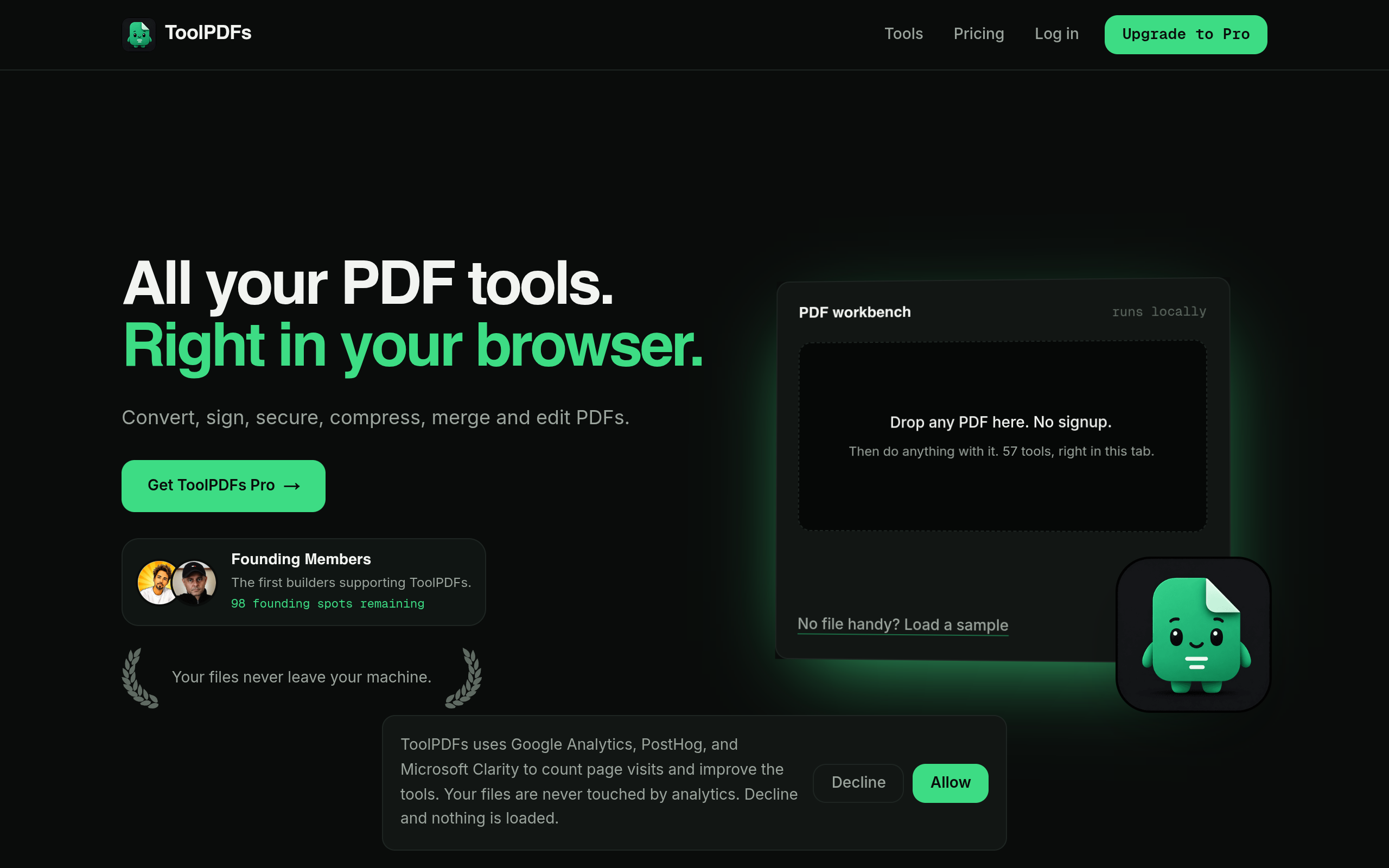
That last point, about picking one primary tool instead of bookmarking ten, is easier said than done when different sites handle conversion, compression, signing, and redaction separately. ToolPDFs brings 57 of these tools, covering PDF editing, conversion, organizing, compressing, signing, and security, along with text, data, and developer utilities, into a single browser-based workspace built for freelancers, solopreneurs, developers, and small business professionals who need quick document work without a learning curve. Files are processed locally in the browser rather than uploaded to a server, which matters for anyone handling client contracts or financial documents under an NDA. It's available with a free daily usage allowance for occasional use, plus monthly, annual, and lifetime plans for anyone doing this daily.
Try It In Your Browser
Fast, Private PDF Tools
Access our full suite of free in browser PDF utilities. No server uploads, total privacy.