 ToolPDFs
Local File Processing Privacy Benefits: What Actually Changes When You Skip the Upload
Learn why processing files locally in your browser is more private than uploading to the cloud, with real comparisons, encryption details, and a vetting checklist.
When you convert, compress, or edit a document using a tool that runs entirely in your browser, the file never leaves your device. That single design choice — processing locally instead of uploading to a remote server — changes the entire privacy equation, not just in a marketing-brochure sense but in concrete, verifiable ways involving data transmission, storage, and legal exposure.
This isn't a niche technical distinction. Contracts, tax documents, source code, client deliverables, and internal reports all pass through document tools every day, and most people never stop to ask where that file actually goes once it's dropped into an upload box. Understanding the difference between local processing and cloud storage is the fastest way to make an informed decision about which tools deserve your sensitive files.
Key Takeaways
- Local file processing means your document is read, converted, or edited using your device's own resources (browser engine, CPU, memory) — it's never transmitted to an external server.
- With cloud-based tools, your file travels over the network, sits on someone else's storage (even temporarily), and becomes subject to that provider's retention policy, security practices, and jurisdiction.
- Browser-based document processing typically relies on WebAssembly and JavaScript running sandboxed in your own browser tab, not a hidden upload happening in the background.
- Local processing eliminates several entire categories of risk at once: server breaches, third-party data access, cross-border data transfer questions, and accidental long-term retention.
- Local processing isn't a complete privacy solution by itself — device security, browser extensions, and your own file-sharing habits still matter, and you should verify a tool's actual architecture rather than trust the label "private" at face value.
What "Local File Processing" Actually Means
"Local" has a specific technical meaning here: the computation happens on the machine you're sitting at, using the resources already available in your browser or operating system, rather than on a server owned by the software vendor.
When a tool processes a PDF locally, the sequence looks like this: your browser reads the file from disk into memory using something like the File API, the tool's code (often compiled to WebAssembly for performance) manipulates that data in memory, and the result is written back to a new file that downloads directly to your device. At no point does the raw file content need to touch a network socket.
Compare that to a typical cloud workflow: your browser uploads the file to a remote server, that server runs the conversion or edit, and then sends a result back down. Even if the vendor deletes the file an hour later, for that window the file existed on infrastructure you don't control, was likely logged somewhere (access logs, load balancer logs, backup snapshots), and passed through however many intermediate systems sit between your browser and their storage layer.
Local Processing vs. Cloud Storage: What Changes Under the Hood
The practical differences aren't abstract — they show up in specific, checkable ways.
| Factor | Local (Browser-Based) Processing | Cloud-Based Processing |
|---|---|---|
| Data transmission | File stays on-device; nothing sent over the network | File uploaded to remote server, then result downloaded |
| Storage exposure | No server-side copy exists at any point | Temporary or persistent copy exists on vendor infrastructure |
| Breach exposure | A server breach at the vendor cannot expose your file, because it was never there | Your file could be included in a server-side breach, backup leak, or misconfigured storage bucket |
| Jurisdiction / data residency | Irrelevant — no cross-border transfer occurs | File may be stored or processed in a different legal jurisdiction than you expect |
| Offline capability | Often works without an internet connection once the page is loaded | Requires an active connection for every operation |
| Speed for small-to-medium files | Near-instant; limited only by device CPU | Adds upload/download latency on top of processing time |
| Speed for very large files or heavy compute | Limited by your device's hardware | Can leverage server-grade hardware for intensive jobs |
| Auditability of retention | You can observe that no upload occurred (e.g., via browser network tools) | You must trust the vendor's stated retention policy |
The speed and hardware trade-off is worth sitting with. Local processing wins decisively on privacy and often on latency for everyday tasks — compressing a PDF, merging pages, converting a spreadsheet — because there's no upload step at all. Cloud processing can still make sense for genuinely heavy computation that exceeds what a laptop or phone can reasonably do, but for the vast majority of document tasks people do daily, that trade-off doesn't apply.
The Privacy Benefits of Local File Processing
No Upload Means No Exposure Window
The most fundamental privacy of local file processing comes down to a simple fact: data that is never transmitted cannot be intercepted, logged, or accessed by a third party in transit. Even with TLS encryption protecting an upload in transit, the file still terminates somewhere — a server, a queue, a storage bucket — and that endpoint becomes a new point of risk that simply doesn't exist when the file never leaves your machine.
No Server-Side Retention to Worry About
Cloud tools generally state a retention window (files deleted after X hours, for example), but you're relying on that policy being implemented correctly, applied to backups, and honored during outages or migrations. Keeping files off servers entirely removes retention policy from the risk equation — there's nothing to delete because nothing was stored in the first place.
No Third-Party Access, Intentional or Accidental
Even well-run companies have employees, contractors, and automated systems with some level of access to production data for debugging, support, or fraud detection. That access is usually legitimate and narrowly scoped, but it's still a form of exposure that doesn't exist when processing happens entirely client-side. This matters most for freelancers handling client NDAs, developers processing files that might contain API keys or credentials, and small business professionals working with financial or HR documents.
Reduced Breach Blast Radius
Data breaches at cloud vendors are a matter of public record across nearly every industry — the Verizon Data Breach Investigations Report has tracked this for years. A breach can only expose data that exists somewhere to be breached. If a document tool never stores your file server-side, a breach of that vendor's infrastructure simply has nothing of yours to leak.
Fewer Cross-Border Data Transfer Questions
Regulations like the GDPR place real constraints on transferring personal data across borders, and many organizations have internal policies restricting where client data can be processed. Local processing sidesteps this entirely — there's no transfer to evaluate because the data never moves off the originating device.
Why Process Files Locally: Real-World Scenarios
Freelancers and solopreneurs routinely handle client contracts, invoices, and NDAs that carry explicit confidentiality obligations. Uploading those documents to a third-party server — even briefly — can technically violate the letter of a confidentiality clause, regardless of how reputable the tool is.
Software developers frequently need to process configuration files, logs, or exported data dumps that can contain credentials, internal hostnames, or customer records. A local tool means that sensitive string never gets logged on someone else's infrastructure, which matters for both security hygiene and compliance with internal data-handling policies.
Small business professionals deal with tax documents, payroll files, and customer records that fall under data protection obligations. Processing these locally removes an entire category of "where did this data go" questions that would otherwise need to be documented for compliance purposes.
Privacy-conscious individuals may simply prefer not to hand over personal documents — medical records, legal paperwork, financial statements — to yet another service that could be acquired, breached, or subpoenaed in the future.
How Browser-Based Document Processing Actually Works
It's worth understanding the mechanics, because the term "local" gets used loosely and not every tool that claims it actually delivers it.
Modern browsers expose APIs that let JavaScript read files selected by the user without any server involvement — the File and Blob APIs are the foundation here. For computationally heavy tasks like PDF rendering, image compression, or format conversion, many tools compile existing native libraries (often written in C or C++) to WebAssembly, which lets that code run inside the browser sandbox at near-native speed. This is the same sandboxing model browsers use to isolate web pages from your operating system, described in detail by the Mozilla WebAssembly documentation.
The result: a tool can merge PDFs, extract text, resize images, or run data transformations entirely within the tab you have open, with the output offered as a direct download. No network request carrying the file's contents needs to fire at all.
You can actually verify this yourself. Open your browser's developer tools, go to the Network tab, and perform an operation in a tool that claims local processing. If you don't see the file's data being sent as a request payload, that's a strong practical signal the processing is genuinely happening on-device rather than behind a hidden upload.
Local Encryption Benefits vs. Server-Side Encryption
Encryption is a separate but related concern from where processing happens, and it's worth distinguishing the two clearly.
Server-side encryption (encryption "at rest" on a vendor's storage) protects a file from someone who steals a hard drive or storage snapshot, but the vendor still holds the decryption keys in most conventional setups, meaning they (or an attacker who compromises their systems) can technically access the plaintext. Local encryption benefits go a step further: when encryption and decryption both happen on your device — for example, password-protecting a PDF locally before it's ever shared — no third party holds the key at any point, and there's no server-side plaintext copy to protect in the first place.
The NIST Guidelines on Data Encryption consistently emphasize that minimizing the number of parties who hold decryption keys reduces overall risk — local encryption is a direct application of that principle. If you're securing a PDF with a password or permissions restrictions, doing that step locally means the protected file is the only version that ever exists; there's no unprotected intermediate copy sitting on a server somewhere between upload and encryption.
What Local Processing Doesn't Protect Against
Honesty matters here — local processing is a strong privacy default, not a complete security solution.
- Malicious browser extensions can potentially read page content or intercept files regardless of where processing happens, since they run with elevated permissions inside your browser.
- A compromised device (malware, keyloggers, unauthorized physical access) exposes files no matter how they were processed, because the risk is happening below the browser layer entirely.
- What you do after processing still matters — if you download a locally processed file and then email it unencrypted or upload it to a different, less trustworthy service, the privacy benefit you gained is undone by the next step in your workflow.
- Analytics and telemetry on a page can still track that you used a feature, even if the file content itself was never transmitted — it's worth checking a vendor's privacy policy for what it collects about usage versus content.
- Some "local" claims aren't fully accurate. A few tools process files locally for simple operations but silently switch to server-side processing for more complex ones. This is exactly why it's worth verifying rather than assuming.
The Electronic Frontier Foundation has written extensively about the general principle that data minimization — simply not collecting or transmitting data you don't need to — is one of the most durable privacy strategies precisely because it doesn't depend on trusting a third party's future behavior.
A Practical Checklist: Evaluating Whether a Tool Truly Processes Files Locally
Use this before trusting any document tool with sensitive files:
- Check network traffic. Open developer tools, watch the Network tab, and perform the action. Look for whether the file's actual content is sent in a request body.
- Test offline. Load the tool, disconnect from the internet, and try the operation again. If it still works, that's strong evidence of genuinely local processing.
- Read the privacy policy for specifics, not slogans. Look for explicit statements about whether files are uploaded, how long any copy is retained, and whether third-party subprocessors are involved.
- Look for a stated technical approach. Vendors that genuinely process locally often reference the underlying method (WebAssembly, client-side JavaScript, in-browser rendering) rather than just using the word "private" as an adjective.
- Consider the operation's complexity. Extremely heavy tasks (OCR on hundreds of pages, complex format conversions) are technically harder to do fully client-side — be more skeptical of "fully local" claims for very demanding features specifically.
FAQ
Is local file processing actually more secure than cloud storage?
It removes several risk categories entirely — server breaches, third-party access, and retention policy failures — but it doesn't replace good device security or safe habits after the file is downloaded. It's a stronger default, not a complete guarantee.
Can browser-based document tools work without an internet connection?
Many genuinely local tools continue working after the page has loaded, even offline, because the processing logic already runs entirely inside your browser. Testing this is one of the most reliable ways to confirm a tool is truly local rather than quietly uploading in the background.
Does "processed locally" automatically mean my file is encrypted?
No — local processing means the file wasn't transmitted to a server, which is a different property from encryption. If you need password protection or restricted permissions, look for a specific local encryption feature rather than assuming it's included by default.
What happens to my file after I close the browser tab?
With genuinely local processing, the file existed only in your browser's memory during the operation; once you close the tab, that in-memory data is gone, and no copy remains anywhere except whatever you explicitly downloaded to your device.
Are there compliance advantages to local processing for regulated industries?
Yes, in practical terms — because no data transfer to a third party occurs, several classes of questions around data processing agreements, subprocessors, and cross-border transfer under frameworks like GDPR simply don't apply the same way they would with a cloud upload.
Verifying the 'Local' Claim Is Half the Battle — Here's the Other Half
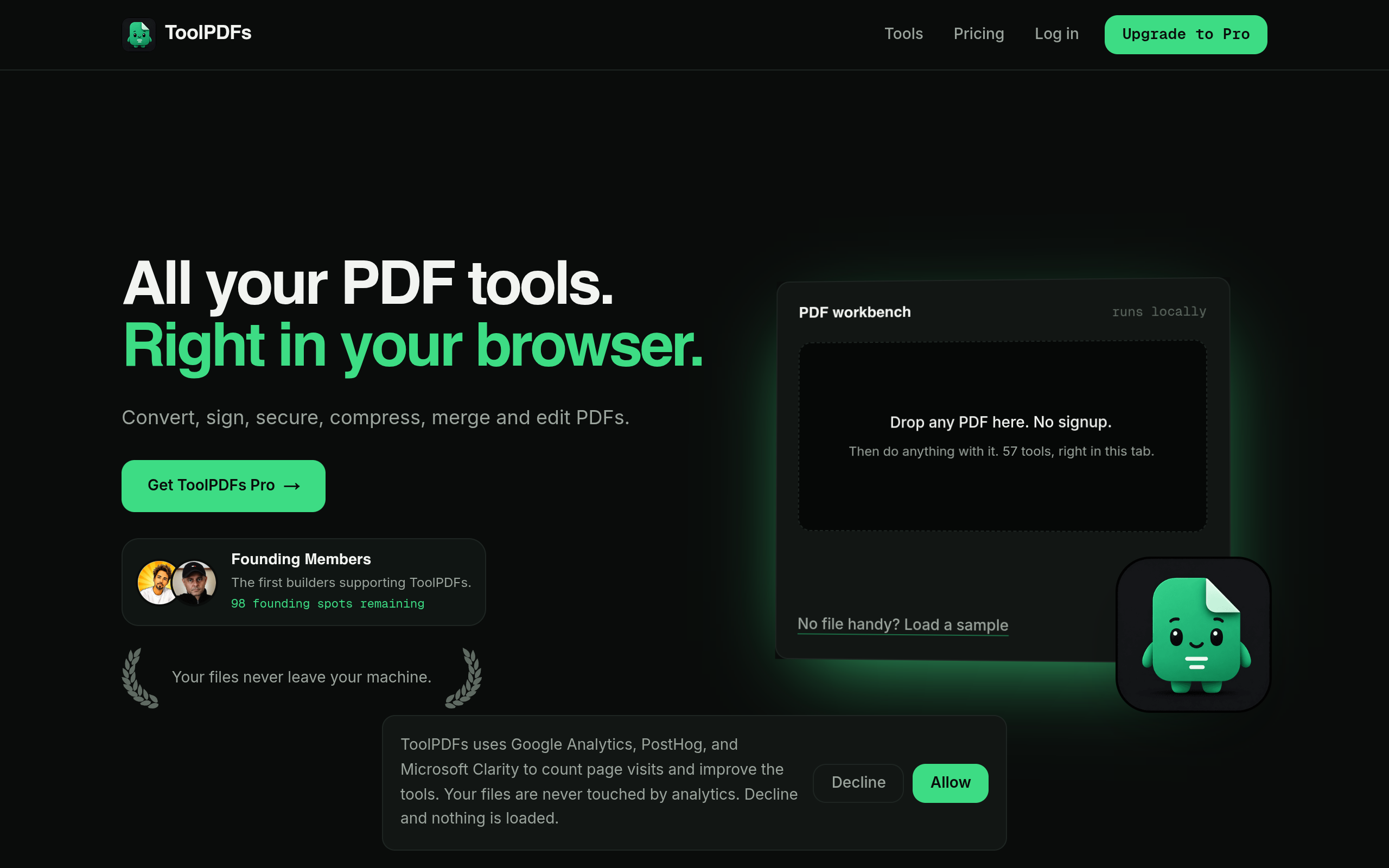
Knowing how to check whether a tool truly processes files locally is only useful if you then have somewhere to actually do your document work that holds up to that check. ToolPDFs is built as a browser-based workspace with 57 tools for converting, organizing, compressing, signing, and securing PDFs, plus text, data, and developer utilities — all designed around keeping files on your device rather than uploading them to a server. That's the kind of setup freelancers, developers, and small business professionals reach for when a contract, codebase export, or financial document simply shouldn't leave their machine. It's available with a free daily usage allowance, alongside monthly, annual, and lifetime plans for people who need it as a regular part of their workflow.
Try It In Your Browser
Fast, Private PDF Tools
Access our full suite of free in browser PDF utilities. No server uploads, total privacy.