 ToolPDFs
How to Merge PDF Files: A Complete Step-by-Step Guide
Learn how to merge PDF files using free online tools, desktop apps, and built-in OS features — plus how to fix common merging problems and protect your data.
If you've ever had five scanned pages, a signed contract, and a cover letter that all needed to become one document, you already know why people search for how to merge PDF files. It's one of the most common document tasks there is, and thankfully one of the easiest to solve once you know which method fits your situation.
This guide walks through every practical way to combine multiple PDF files — free online tools, desktop software, built-in operating system features, and even command-line options for developers — along with the page-ordering, quality, and security issues that trip people up.
Key Takeaways
- Merging PDFs means combining separate files into a single document with the pages in a chosen order — no special file format is created, it's still a standard PDF.
- Free browser-based tools work for almost everyone; you just upload or drag files, arrange them, and download the combined result.
- Mac users can merge PDFs for free using the built-in Preview app; Windows users can do it without installing anything using the File Explorer "combine" feature on newer builds, or a free tool for older versions.
- Always check page order, orientation, and file size limits before merging — these are the most common sources of errors.
- If your documents contain sensitive information (contracts, medical records, financial statements), consider whether a tool processes files locally in your browser or uploads them to a server.
What Actually Happens When You Merge PDF Files
A PDF file is a structured container of pages, fonts, images, and metadata, defined by the ISO 32000 standard that ISO maintains publicly. When you merge two or more PDFs, a tool isn't converting anything — it's reading the page objects from each source file and writing them, in the order you specify, into a new container. That's why merging is generally lossless: text stays selectable, images keep their original resolution, and any embedded fonts carry over, provided the merging tool handles font embedding correctly.
What can change during a merge:
- Metadata (title, author, creation date) usually resets to reflect the new combined file, unless the tool preserves it explicitly.
- Bookmarks and internal links may or may not transfer, depending on the tool's sophistication.
- Page size and orientation stay as they were in the source files — merging doesn't standardize this automatically, which is a common surprise when combining a portrait letter and a landscape spreadsheet export.
- Forms and interactive fields sometimes lose functionality if the merging tool flattens the document.
Understanding this helps you choose the right tool: if you need bookmarks preserved for a long report, you want a tool that explicitly supports that. If you just need a quick stack of scanned pages in the right order, almost any merger will do.
How to Merge PDF Files Online for Free
This is the fastest route for most people, and it's what "merge PDFs online free" searches are really asking for. The general workflow across nearly every browser-based PDF merger tool looks like this:
- Open the merge tool in your browser — no installation required.
- Add your files by dragging them in or selecting them from your device. Most tools accept multiple files at once.
- Reorder the files by dragging thumbnails into the sequence you want. This step matters more than people expect — get it wrong and you'll have a report with the conclusion before the introduction.
- Remove or rotate individual pages if the tool supports page-level editing rather than just whole-file merging.
- Combine and download the resulting single PDF.
A few things separate a good online merger from a frustrating one:
- File size and count limits. Free tiers often cap the number of files or total megabytes you can merge per session or per day.
- Whether files are uploaded to a server or processed locally. Some tools run entirely in your browser using client-side JavaScript libraries, meaning your files never leave your device. Others upload files to a remote server, process them, and send back a result — which is fine for non-sensitive documents but worth knowing before you merge a signed NDA or medical record.
- Whether the tool strips or preserves bookmarks and hyperlinks.
- No sign-up requirement. Many people just need to combine two files once and don't want to create an account for it.
If you regularly work with contracts, tax documents, or client files, it's worth checking a tool's privacy policy or looking for an explicit statement that processing happens client-side before you commit to it for anything sensitive.
Merging PDFs on a Mac Without Installing Anything
macOS has had PDF merging built into Preview for years, and it remains one of the most underused free options:
- Open the first PDF in Preview.
- Show the sidebar (View → Thumbnails).
- Drag the second PDF file directly into the thumbnail sidebar at the position where you want its pages to appear.
- Repeat for additional files.
- Go to File → Export as PDF to save the combined document.
Apple documents this workflow and a few page-management variations in its official Preview support pages. It's genuinely capable — you can drag individual pages, not just whole files, which gives you granular control without any third-party software.
Merging PDFs on Windows Without Extra Software
Windows historically lacked a native PDF merge feature, which is why so many Windows users end up searching for online tools. Recent versions of File Explorer have started rolling out a built-in "Combine files in PDF" option in the right-click context menu — select multiple PDF files, right-click, and look for that option if your build supports it. Microsoft outlines File Explorer's evolving PDF handling in its Windows support documentation.
If your version of Windows doesn't have that option yet, your two realistic paths are:
- A free browser-based merger (fastest, no install).
- Adobe Acrobat, which has offered PDF merging as a core feature for decades and is well documented in Adobe's own help center. Acrobat is the most feature-complete option if you also need OCR, redaction, or advanced form handling — but it's a paid product for most of its serious functionality.
Combining PDF Documents on a Phone or Tablet
Mobile merging works the same conceptually as desktop merging, just with touch-based reordering:
- Use a mobile browser or app that supports multi-file PDF merging.
- Select the files from your device's storage or cloud drive (Files app on iOS, Files by Google or your file manager on Android).
- Arrange the order with drag gestures.
- Export or download the merged file, then save it to your device or cloud storage.
The main friction point on mobile is file access — depending on where your PDFs are stored (Downloads folder, email attachments, a cloud drive), you may need an extra step to get them into the merging tool's file picker. Doing this over a stable connection matters if you're using an online tool, since larger merges can be slow on mobile data.
Reordering, Rotating, and Cleaning Up Pages Before You Merge
Merging rarely happens in isolation — you're usually also fixing page order, removing a blank cover sheet, or rotating a page someone scanned upside down. Handle these in the right sequence to avoid redoing work:
- Fix each source file first if the problem is contained to one document (e.g., a single sideways page in one scan).
- Merge next, once individual files are clean.
- Do final reordering and page removal last, working on the combined document, since it's easier to see the full sequence once everything is together.
If you're combining scanned paperwork from multiple sources — say, several people each scanning their own signature page — expect inconsistent page sizes and orientations. Most merge tools won't auto-correct this, so plan to rotate or crop pages either before or immediately after merging rather than assuming the final file will look uniform automatically.
Common Problems When You Join PDF Documents Together
| Problem | Likely Cause | Fix |
|---|---|---|
| Pages appear in the wrong order | Files were added in upload order, not intended reading order | Manually drag thumbnails into sequence before finalizing |
| Merged file is much larger than expected | Source files contain high-resolution scans or uncompressed images | Compress each PDF before merging, or compress the final merged file |
| Text isn't selectable in some pages | Some source pages were scanned images without OCR | Run OCR on the scanned pages before merging, or after, using an OCR tool |
| Bookmarks or hyperlinks disappeared | The merge tool flattened the structure | Use a tool that explicitly preserves bookmarks, or re-add them afterward |
| Merge fails or times out | File size limit exceeded, or a corrupted source PDF | Split large files first, or run a repair/optimization pass on the problem file |
| Password-protected file won't merge | Merging tools generally can't process encrypted PDFs without the password | Remove the password (with authorization) or unlock the file first, then merge |
Online Tools vs. Desktop Software vs. Command-Line Merging
There isn't one universally "best" way to combine multiple PDF files — the right choice depends on frequency, sensitivity, and technical comfort.
| Method | Cost | Works Offline | Best For | Main Limitation |
|---|---|---|---|---|
| Browser-based merger | Usually free, some paid tiers | Depends on tool (some run entirely client-side) | Occasional, quick merges with no install | Daily/file-size limits on free tiers |
| Adobe Acrobat / similar desktop suite | Paid subscription | Yes | Frequent, complex PDF work (forms, redaction, OCR) | Cost and installation overhead |
| OS built-in (Preview / File Explorer) | Free | Yes | Mac and newer Windows users who merge occasionally | Fewer advanced options, availability varies by OS version |
Command-line (e.g., pdftk, qpdf, Python libraries) |
Free (open source) | Yes | Developers automating merges in scripts or pipelines | Requires comfort with a terminal |
Developers automating document workflows often reach for open-source libraries rather than a GUI at all. Tools like qpdf or Python's pypdf can merge PDFs in a single scripted command, which is worth knowing if you're building a repeatable process rather than doing a one-off merge — a case where a general-purpose document and developer tools workspace can also be useful alongside dedicated command-line utilities.
Is It Safe to Merge PDF Files Online?
For most everyday documents — newsletters, public reports, personal photo scans — uploading to any reputable online merger carries negligible risk. The calculation changes once you're merging anything with personal, legal, financial, or medical information.
The key technical distinction is where the processing happens:
- Server-side tools upload your files to a remote server, combine them there, and send back the result. This is standard practice and generally handled securely by established providers, but it does mean your document briefly exists on someone else's infrastructure.
- Client-side (browser-based) tools use JavaScript to process the merge entirely within your own browser tab, meaning the files never travel over the network at all.
Neither approach is inherently wrong, but if you're merging a signed contract, a client's financial statement, or anything under an NDA, it's worth confirming which model a given tool uses before you proceed — a quick look at the tool's privacy policy or "how it works" page usually answers this directly. The PDF Association, an industry body focused on PDF standards, publishes general guidance on document security practices if you want a deeper technical grounding.
FAQ
Can I merge password-protected PDF files?
Generally no — most merging tools can't read the contents of an encrypted PDF until the password is entered and the file is unlocked. Remove the password first (only for files you're authorized to unlock), then merge normally.
Will merging PDFs reduce image or text quality?
No, merging itself doesn't recompress or degrade content — it combines the existing pages as they are. Quality loss only happens if a specific tool also applies compression during the merge, which some do by default to keep file sizes manageable.
Is there a limit to how many PDFs I can combine at once?
It depends on the tool. Free online mergers often cap the number of files, total pages, or combined file size per session; desktop software and command-line tools typically have no practical limit beyond your device's memory.
Can I merge PDFs directly from my phone?
Yes — mobile browsers support the same drag-and-drop or file-picker workflow as desktop, though moving files between apps (like from an email attachment into a merging tool) can take an extra step compared to a computer.
Do merged PDFs keep their original bookmarks and hyperlinks?
Sometimes — it depends entirely on the specific tool. Simpler mergers often flatten the structure and drop bookmarks, while more capable tools preserve them or let you rebuild a table of contents afterward.
When the Document You're Merging Isn't Meant for Just Anyone
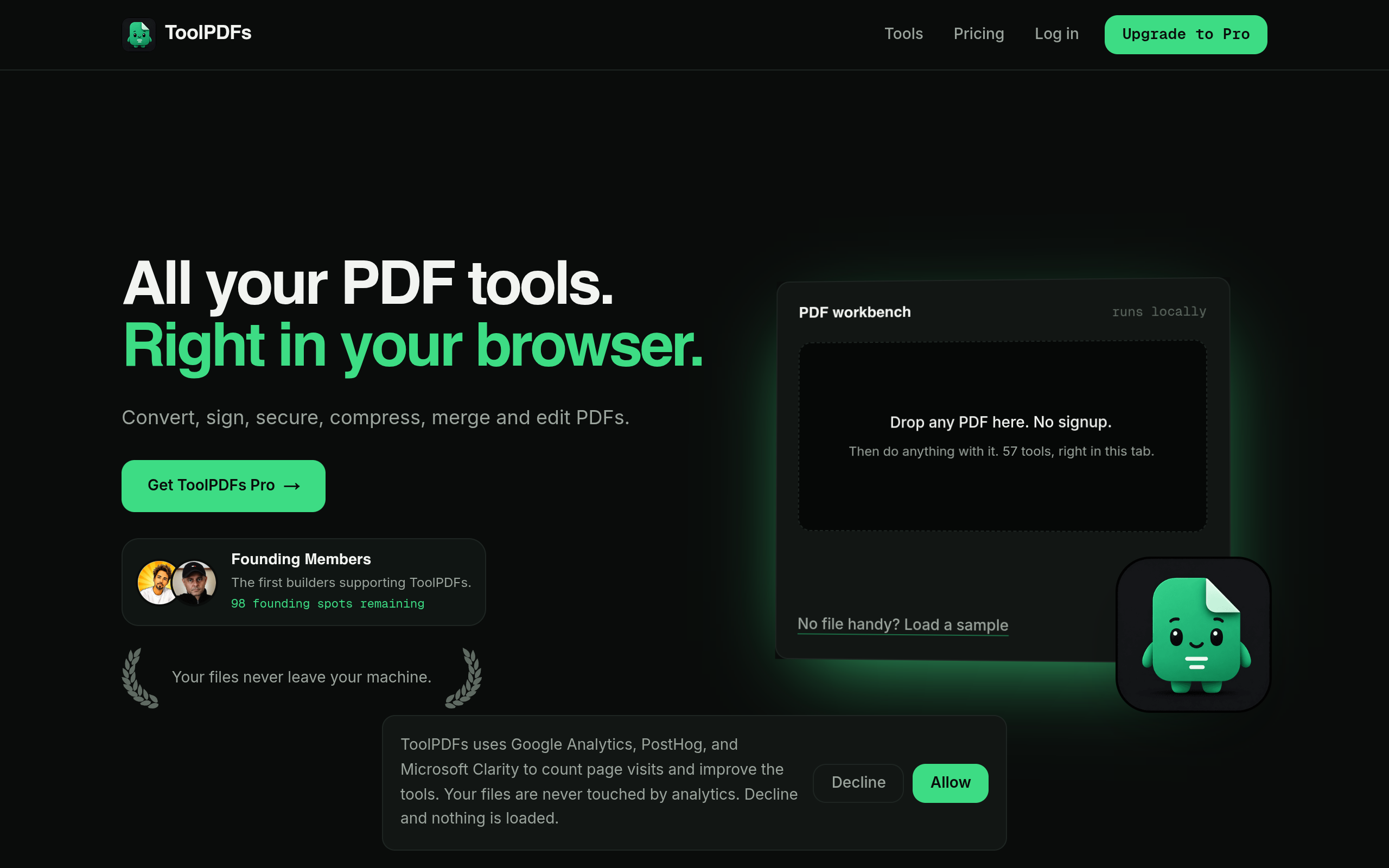
That question of where your files actually go during a merge is worth sitting with, especially if you handle contracts, invoices, or client records for a living. ToolPDFs runs its merge and 56 other PDF, text, and developer tools directly in your browser, so files stay on your own device instead of passing through a remote server. That setup fits freelancers, developers, and small business professionals who need quick document work without adding a new place their client data could end up. It's available with a free daily allowance for occasional use, alongside monthly, annual, and lifetime plans for anyone merging and editing PDFs often enough to need more.
Try It In Your Browser
Merge PDF Files Online
Combine multiple PDF files into one clean document directly in your browser without file uploads.