 ToolPDFs
How to Extract Pages From a PDF: A Step-by-Step Guide for Every Method
Extract PDF pages the right way: step-by-step methods for browser tools, desktop apps, and command line, plus fixes for common extraction problems.
Extracting pages from a PDF sounds like it should be simple — and it is, once you know which method fits your situation. Whether you need to pull one signed page out of a 40-page contract, split a scanned book into individual chapters, or grab three slides from a client's deck without sending the whole file, the right approach depends on your PDF, your device, and how much control you need over the output.
This guide walks through every practical method: browser-based tools, desktop apps built into Windows and macOS, and command-line options for developers who want to script the process. It also covers the mistakes that trip people up — password-protected files, scanned pages, and page-order confusion — so you're not troubleshooting after the fact.
Key Takeaways
- Extracting pages creates a new, smaller PDF containing only the pages you choose; it doesn't modify or delete anything from the original file unless you specifically choose a delete function instead.
- Browser-based extraction tools handle most one-off jobs in under a minute and work on any operating system without installing anything.
- Desktop apps like Adobe Acrobat and macOS Preview are worth using if you're already inside them for other edits, but they're overkill for a single quick task.
- Password-protected or scanned PDFs need an extra step — unlocking or OCR — before page ranges can be pulled out cleanly.
- Developers extracting pages repeatedly or at scale should look at command-line tools like
qpdfor Python'spypdf, which can be scripted and batched.
What "Extracting Pages" Actually Means
People use "extract," "split," "separate," and "remove" almost interchangeably, but they produce different results, and picking the wrong one wastes time.
- Extract pages: Copy specific pages into a brand-new PDF. The original file is untouched. This is what most people mean by "pull out specific PDF pages."
- Split a PDF: Break an entire document into multiple smaller PDFs, usually one per page or one per defined range, with no pages left over.
- Remove or delete pages: Take pages out of the original file and keep what remains — the inverse of extraction.
- Isolate a page: Informally, this usually means the same as extracting one specific page, often to reorder or re-insert it elsewhere.
If you need pages 4–6 out of a 30-page report to send to a colleague, you want extraction. If you're trying to shrink a document by getting rid of a cover sheet or blank page, you want removal. Both operations are supported by the same class of tools, just pointed in opposite directions.
Before You Extract: Three Things Worth Checking
1. Is the PDF password-protected or restricted?
If a file is encrypted or has editing restrictions, most extraction tools won't touch it until it's unlocked with the correct password. Check this before you start, not after your tool throws an error.
2. Are the pages text or scanned images?
Extraction doesn't require OCR — it works at the page level regardless of content type. But if you plan to search or select text on the extracted pages later, a scanned document that hasn't been OCR'd will still behave like an image after extraction.
3. Do you know the exact page numbers?
PDF viewers sometimes display a page number that doesn't match the printed page number, which is common in books and reports with front matter. Confirm the page count and numbering in your viewer's page panel before entering a range, so you don't extract the wrong section.
How to Extract Pages From a PDF Online (Browser-Based Method)
This is the fastest option for a one-off task and doesn't require installing anything. The general workflow is consistent across most browser-based PDF page extraction tools:
- Open the tool and upload or drag in your PDF file.
- Wait for the page thumbnails to render so you can see every page visually.
- Select the pages you want — either by clicking thumbnails individually, entering a page range like
4-9, 12, or using a "select all except" option if you're extracting most of the document. - Preview the selection to confirm you've got the right pages in the right order.
- Export or download the new PDF containing only the selected pages.
The main variable between tools is where processing happens. Some upload your file to a remote server, process it there, and send back the result, which means your document briefly leaves your device. Others process the file entirely inside the browser using client-side code, so nothing is transmitted anywhere. For contracts, medical records, financial statements, or anything under an NDA, that distinction matters at least as much as the extraction feature itself. If extraction is just one of several tasks on your list — say you also need to compress, convert, or merge files — it's often more efficient to use an all-in-one PDF workspace rather than switching between several single-purpose sites.
How to Extract Pages From a PDF on Desktop
Using Adobe Acrobat (Windows and Mac)
Acrobat's Organize Pages tool lets you select thumbnails and export them as a new file, or drag them out into a fresh document. Adobe documents this workflow in its own PDF page extraction guide. It's a solid choice if you're already paying for Acrobat and editing the document in other ways at the same time, but installing or subscribing to it just to pull out three pages is a lot of overhead for a task that takes seconds elsewhere.
Using Preview on macOS
macOS's built-in Preview app can extract pages without any extra software:
- Open the PDF in Preview and show the sidebar (View > Thumbnails).
- Select the page or pages you want (Cmd-click for multiple, Shift-click for a range).
- Drag the selected thumbnails onto the desktop — this creates a new PDF with just those pages — or use File > Print, choose "Selected pages," and save as PDF.
Apple documents the thumbnail-based page management workflow in its Preview support guide. This method is genuinely fast if you're on a Mac and don't want to leave the Finder.
Using Windows without Acrobat
Windows doesn't ship with a built-in PDF page editor, but the "Microsoft Print to PDF" driver can approximate extraction: open the file in any PDF viewer, print it, choose the page range you want in the print dialog, and select "Microsoft Print to PDF" instead of a physical printer. It works, but it flattens some interactive elements — like form fields or links — in the process, so it's not ideal for anything beyond static documents.
How to Extract Pages From a PDF Using the Command Line (For Developers)
If you're extracting pages as part of a script, pipeline, or repeated batch job, a GUI tool becomes the bottleneck. Two well-established command-line tools handle this cleanly:
qpdf — a widely used, actively maintained PDF manipulation library and CLI:
qpdf --pages input.pdf 4-9 -- output.pdf
This pulls pages 4 through 9 into output.pdf, leaving the source file untouched. Full syntax is in the qpdf manual.
pypdf (Python) — useful when extraction is one step in a larger automated workflow:
from pypdf import PdfReader, PdfWriter

reader = PdfReader("input.pdf")
writer = PdfWriter()
for page_number in range(3, 9):  # pages 4-9, zero-indexed
    writer.add_page(reader.pages[page_number])
writer.write("output.pdf")
The pypdf documentation covers additional operations like merging, rotating, and watermarking if the same script needs to do more than extraction.
pdftk is another long-standing option with a similarly simple cat command for pulling page ranges, though its development has slowed compared to qpdf in recent years.
Comparing Your Options
| Method | Best for | Cost | Works offline | Batch/scripting | File leaves device? |
|---|---|---|---|---|---|
| Browser tool (client-side) | Quick one-off jobs, any OS | Free or low-cost | No, needs a browser | Limited | No, if processing is local |
| Browser tool (server-side upload) | Quick one-off jobs | Free or subscription | No | Limited | Yes, file is uploaded |
| Adobe Acrobat | Users already editing PDFs regularly | Subscription | Yes | Yes, with Action Wizard | No, once installed |
| macOS Preview | Mac users, simple jobs | Free, built-in | Yes | No | No |
| qpdf / pdftk | Developers, automation, servers | Free, open source | Yes | Yes | No |
| pypdf (Python) | Custom developer workflows | Free, open source | Yes | Yes | No |
If you want to see how page extraction fits alongside the dozens of other conversion, organization, and security tasks a PDF workspace typically covers, a tool's documentation is usually the fastest way to check before committing to one.
Extract, Remove, or Isolate: Matching the Method to the Job
The tools above all technically support "extraction," but the direction you're working in changes what you should select:
- Pulling a few pages to share separately — for example, sending one invoice page from a longer report — is classic extraction: select and save just those pages.
- Removing pages from PDF documents you're distributing — say, stripping an internal cover memo before sending externally — usually means selecting everything except the pages to remove, or using a dedicated "delete pages" function if your tool has one. It's faster than manually re-selecting everything you're keeping.
- Separating a PDF into standalone files — turning a scanned multi-invoice batch into one PDF per invoice — is a split operation, not extraction. Most tools distinguish between "extract selected pages into one file" and "split into multiple files," so confirm which mode you're in before exporting.
- Isolating a single page for reinsertion — pulling a page out to rotate or reorder it, then merging it back — is best treated as extraction followed by a merge step, since almost no tool edits a page's position in place without effectively removing and re-adding it.
Common Problems When Extracting PDF Pages
The tool says the file is "protected" or "encrypted"
You'll need the password to unlock the document first. If it's an owner-password restriction rather than a user password, some tools can work around editing restrictions if you're able to open the file at all, but this varies by tool and by the license terms of the document itself — when in doubt, get the password from whoever created the file.
Extracted pages come out blank or in the wrong order
This almost always means the page numbers entered didn't match the tool's internal numbering, or the selection was made before thumbnails fully loaded. Re-check the thumbnail preview before exporting, not just the number you typed.
The extracted file is much larger or smaller than expected
Some tools re-compress images during extraction, which can shrink file size but also degrade image quality. Others simply copy the raw page data, keeping size roughly proportional to the number of pages taken. If image quality matters, check whether your tool offers a "no recompression" or "high quality" export setting.
Form fields, links, or bookmarks disappear after extraction
Basic extraction methods, including the print-to-PDF workaround, sometimes flatten interactive elements. If your document has fillable form fields or internal hyperlinks you need preserved, use a tool built specifically for PDF editing rather than a print-based shortcut.
Choosing a PDF Page Extraction Tool: What Actually Matters
Beyond raw functionality, three things separate a good extraction tool from a frustrating one:
- Visual page selection. Typing "pages 4-9" blind is fine for short documents, but for anything over 20 pages, thumbnails let you visually confirm what you're grabbing before exporting.
- No unnecessary limits for the job at hand. Some free tools cap file size or page count in ways that push you toward a paid plan for a single large job — worth checking before you've already uploaded a 200-page document.
- Where your file is actually processed. Server-side tools upload your document to process it remotely; browser-based tools that run entirely client-side, using technology like PDF.js, never send the file anywhere. Look for this explained clearly on a tool's about page or privacy policy before uploading anything sensitive.
For background on how PDF pages and structure are actually defined at the file-format level, the ISO 32000 standard summary from the PDF Association is a useful primary source if you want to understand why some editing operations are trivial and others aren't.
Frequently Asked Questions
Can I extract pages from a PDF without installing any software?
Yes — browser-based tools handle this entirely within a browser tab, with no installation required, and macOS Preview is already installed on every Mac if you'd rather use a native app.
Does extracting pages remove them from the original PDF?
No. Extraction creates a new, separate PDF containing only the selected pages; the source file stays complete and unchanged unless you specifically choose a delete or remove function instead.
Can I extract pages from a password-protected PDF?
Only after the file is unlocked with the correct password — extraction tools generally can't select pages inside an encrypted document until it's decrypted first.
What's the difference between extracting and splitting a PDF?
Extraction pulls a chosen set of pages into one new file while leaving the rest behind; splitting divides the entire document into multiple separate files, typically covering every page with no leftovers.
Will extracting pages affect the quality of images or scanned content?
It shouldn't, as long as the tool copies page data directly rather than re-rendering or recompressing it — check for a "preserve quality" or "no recompression" setting if the PDF contains scanned pages or photos.
Keeping Every Page Intact — Without Uploading Anything
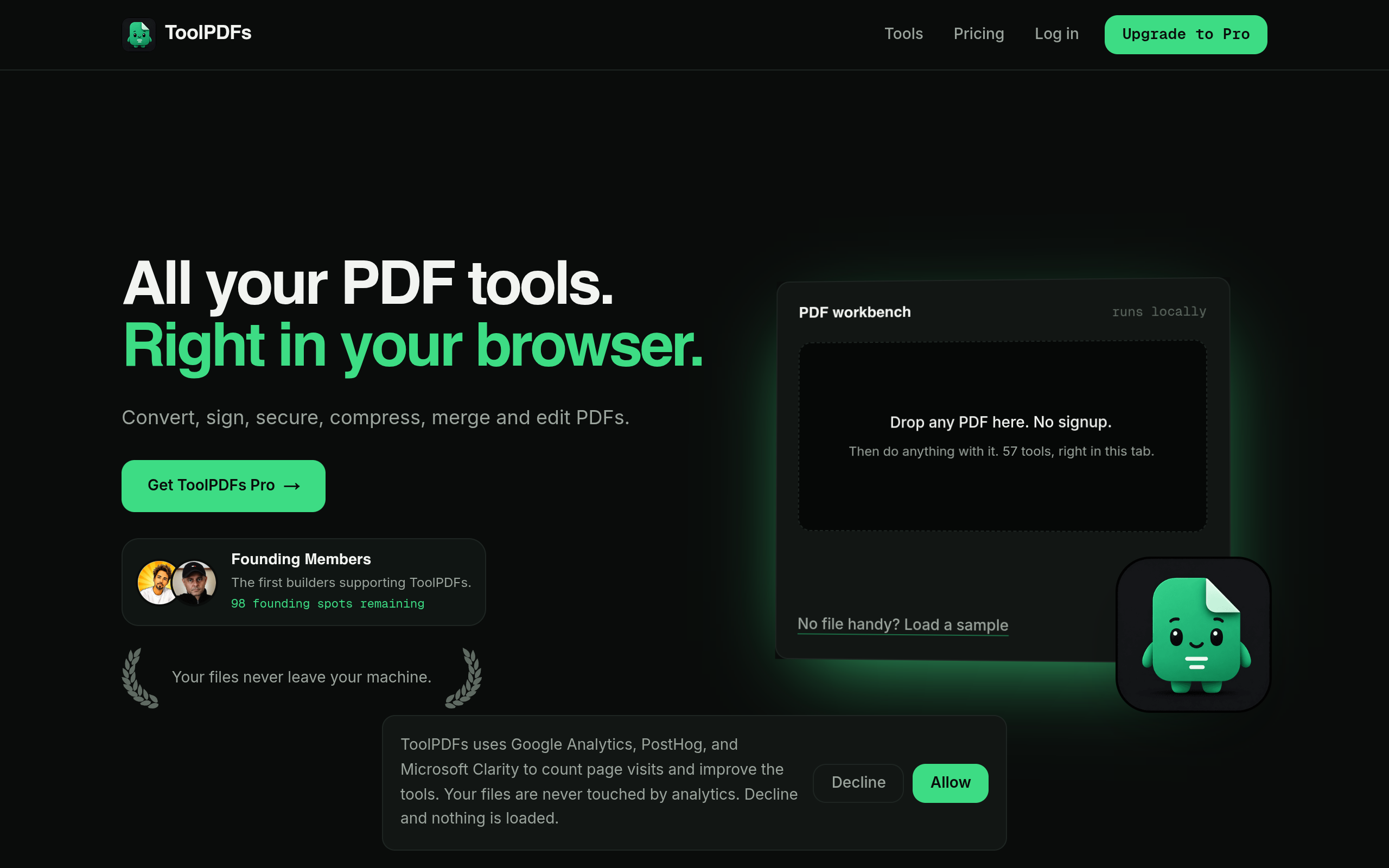
That kind of control — deciding exactly which pages leave your device, and in what quality — gets a lot simpler when extraction happens on your own machine instead of a remote server. ToolPDFs runs its PDF page extraction tool, along with 57 other conversion, organization, compression, and security tools, directly in the browser, so files are processed locally rather than sent anywhere for handling. That fits freelancers, developers, and small business professionals working with contracts, client files, or internal documents who want speed without adding another upload to keep track of. A free daily allowance covers occasional extraction jobs, with monthly, annual, or lifetime plans available for anyone doing this kind of work often enough to need it.
Try It In Your Browser
Split PDF Pages
Extract specific pages or break a PDF into individual files securely on your device.