 ToolPDFs
How to Digitally Sign a PDF: A Complete Step-by-Step Guide
Learn how to digitally sign a PDF the right way — including legal validity, certificate-based signatures, and the fastest tools for each situation.
Signing a PDF sounds like a one-click task until you actually need to do it for something that matters — a lease, a contract, a tax form, an NDA. Then the questions pile up fast: Does typing your name count as a signature? Do you need a certificate? Will the other party's lawyer accept it? This guide walks through the actual mechanics of digitally signing a PDF, the legal reality behind it, and how to pick the right method for the document in front of you.
Key takeaways
- "Digital signature" and "electronic signature" are not interchangeable — a digital signature uses a cryptographic certificate to bind your identity to the document, while an electronic signature can be as simple as a typed name or scanned image.
- Most everyday documents (offer letters, invoices, internal approvals) only need a simple electronic signature, which is legally valid in the US and EU under the ESIGN Act, UETA, and eIDAS.
- High-stakes documents — notarized filings, some government submissions, certain international contracts — often require a certificate-based digital signature tied to a verified identity.
- You can add a signature using desktop software (Adobe Acrobat), built-in OS tools (Preview on Mac), a dedicated e-signature service (DocuSign, Adobe Sign), or a browser-based PDF tool, depending on how much verification and audit trail you need.
- Always check how the signing tool handles your file — server-upload tools send your document to a third party, while browser-based tools that process files locally on your device never transmit the content anywhere.
Digital signature vs. electronic signature: the distinction that actually matters
Most people searching for how to sign a PDF actually want an electronic signature, not a digital signature in the strict technical sense — and conflating the two is where a lot of confusion (and occasionally legal risk) starts.
An electronic signature is any electronic mark that indicates intent to agree to a document: a typed name, a drawn signature, an uploaded image of your handwritten signature, or a click on an "I agree" button. It's a legal concept, not a cryptographic one.
A digital signature is a specific technology: a cryptographic hash of the document is signed with your private key, which is tied to a digital certificate issued by a certificate authority or generated locally. The recipient's PDF reader can mathematically verify that (a) the document hasn't been altered since signing and (b) the signature came from the certificate holder. The NIST digital signature standard defines the cryptographic basis most software implementations follow.
In practice, "digitally sign a PDF" is used colloquially to mean both, so this guide covers the full range — from a quick typed signature on a freelance invoice to a certificate-backed signature on a document that needs to hold up to scrutiny.
When a simple electronic signature is enough
For the vast majority of business documents — proposals, invoices, NDAs, internal sign-offs, freelance contracts — a typed or drawn signature applied through any reputable tool satisfies the legal bar for an enforceable agreement in the US and most of the world. The signature doesn't need a certificate behind it to be binding; it needs clear evidence of intent and, ideally, a timestamp and some record of how it was applied.
When you need a certificate-based digital signature
Certificate-based signing becomes necessary when:
- A government agency, court, or regulator explicitly requires it (common in tax filings, some public procurement, and certain EU public-sector submissions).
- You need long-term, independently verifiable proof that a specific person — not just "someone with access to this account" — signed the file.
- The counterparty's compliance team requires PAdES-, CAdES-, or XAdES-compliant signatures under the EU's eIDAS regulation.
- You're signing software, firmware, or code-adjacent artifacts where a trusted certificate chain matters more than intent.
Is a digitally signed PDF legally binding?
Yes, in almost every common business context. In the United States, the ESIGN Act and the Uniform Electronic Transactions Act (UETA) give electronic signatures the same legal weight as ink signatures for most contracts, as long as both parties consented to sign electronically and the signature can be attributed to the signer. The EU's eIDAS regulation goes further, defining three tiers — simple, advanced, and qualified electronic signatures — with qualified signatures (which require a certificate from a qualified trust service provider) carrying the same legal status as a handwritten signature across all EU member states.
A few categories are commonly excluded from electronic signing regardless of jurisdiction: wills, certain family law documents (divorce decrees, adoption papers), court orders, and some real estate transfer documents. If you're not sure whether your specific document type qualifies, that's a question for the counterparty or a lawyer, not for a signing tool's terms of service.
Step-by-step: signing a PDF in Adobe Acrobat
Acrobat remains the reference implementation most people compare other tools against, so it's worth knowing the flow even if you don't use it day to day.
- Open the PDF in Acrobat (desktop or Acrobat online).
- Select Fill & Sign from the right-hand tool panel.
- Click Sign, then choose Add Signature.
- Type your name for a typed signature, draw it with a mouse or trackpad, or upload an image of your handwritten signature.
- Place the signature block on the document and adjust its size.
- For a certificate-based signature instead, use Certificates > Digitally Sign, select an existing digital ID or create a new self-signed one, and apply it — this embeds the cryptographic signature rather than just a visual mark.
- Save the file; Acrobat locks the signed fields from further editing.
Adobe's own documentation on signing PDFs in Acrobat covers the certificate configuration options in more depth if you're setting up a reusable digital ID.
Step-by-step: signing a PDF on Mac with Preview
Mac users often don't realize Preview already has a capable signing feature built in, at no extra cost.
- Open the PDF in Preview.
- Click the markup toolbar icon (the pen-tip icon), then select the signature icon.
- Choose Trackpad to draw your signature with your finger, Camera to photograph a signature on paper, or select a previously saved signature.
- Click into the document where the signature should go, then resize it as needed.
- Save the file (Command+S).
This produces a visual, image-based electronic signature — not a certificate-based digital signature — which is sufficient for most day-to-day use. Apple documents the full flow in its Preview signing guide.
Step-by-step: signing a PDF in a browser-based tool
Browser-based PDF tools have become popular precisely because they skip the software installation and, in the better implementations, skip uploading your file to a server entirely. The general flow across most browser tools looks like this:
- Open the tool and select or drag in the PDF you need to sign.
- Choose to draw, type, or upload an image of your signature.
- Position the signature (and date field, if required) on the page.
- Export or download the signed PDF.
The meaningful difference between tools at this step isn't the signing UI — most look similar — it's what happens to your file during the process. Some tools upload your document to a remote server to render and process it, which means a contract, medical form, or financial statement briefly (or not-so-briefly) leaves your device. Tools that process files locally in the browser, using client-side JavaScript rather than a server round-trip, never transmit the file's content anywhere. That distinction matters a lot more for a signed contract than it does for, say, resizing an image. ToolPDFs' documentation outlines which of its signing and editing tools run entirely client-side.
Choosing the right signing method for your document
| Method | Legal weight | Identity verification | Typical cost | Best for |
|---|---|---|---|---|
| Typed or drawn signature (image-based) | Valid electronic signature under ESIGN/UETA | None built in — relies on account/email trail | Often free | Invoices, proposals, internal approvals, freelance contracts |
| Self-signed digital certificate | Valid digital signature, verifiable integrity | Self-attested, not third-party verified | Free (built into Acrobat, most PDF editors) | Internal documents where tamper-evidence matters more than external trust |
| Certificate from a trusted CA | Advanced/qualified digital signature | Verified by a certificate authority | Often a paid annual certificate | Contracts requiring strong non-repudiation, regulated filings |
| Cloud e-signature service (DocuSign, Adobe Sign) | Valid electronic signature with detailed audit trail | Email/SMS verification, sometimes ID check | Subscription-based | Multi-party contracts needing tracked routing and audit logs |
| Browser-based PDF signing tool | Valid electronic signature | Depends on tool; usually none built in | Often free with usage limits | Quick single-party signatures, privacy-sensitive documents |
How to verify a digitally signed PDF you received
If someone sends you a certificate-signed PDF, most modern PDF readers show a signature panel automatically when you open the file, usually flagging whether the signature is valid, whether the document has been modified since signing, and whether the certificate chain is trusted. In Adobe Acrobat, click the signature panel icon in the left sidebar to see the full validity report, including the certificate issuer and signing timestamp.
For a simple electronic signature (typed name or image), there's no cryptographic verification possible — the "proof" lives in metadata, IP/timestamp logs, or an audit trail generated by whatever tool created the signature, not in the PDF file itself. If a counterparty disputes a simple e-signature, the audit trail from the signing tool (not the PDF) is typically what gets produced as evidence.
Common mistakes that weaken a signed PDF
- Signing before the document is final. Certificate-based signatures invalidate (or flag as modified) if the PDF changes afterward, including if fields are filled in post-signature.
- Flattening a form before signing. If a document still has fillable fields the other party can edit after your signature is applied, the visual signature doesn't prevent tampering with the surrounding content.
- Relying on a screenshot of a signature as proof. A signed PDF with an embedded signature field carries far more evidentiary weight than a screenshot or forwarded image.
- Ignoring the timestamp. Especially for anything with a deadline (bids, applications, filings), an untrusted or missing timestamp can undercut the value of the signature entirely.
- Using a signing tool that requires an account and permanent storage for a document you never intend to store anywhere else. This is less a legal risk and more a data-hygiene one, but it's worth being deliberate about, especially for anything containing financial or personal information.
Frequently asked questions
Do I need Adobe Acrobat to digitally sign a PDF?
No. Built-in OS tools like Preview on Mac, most browser-based PDF editors, and dedicated e-signature services can all add a legally valid electronic signature without Acrobat.
What's the difference between an electronic signature and a wet signature scanned into a PDF?
A scanned wet signature is just an image and carries the same electronic-signature status as a typed or drawn one — the format doesn't add legal weight; intent and context do.
Can I sign a PDF on my phone?
Yes — most mobile PDF apps and browser-based tools support drawing a signature with your finger directly on the touchscreen, and the resulting signed file works the same as one created on desktop.
Will a digitally signed PDF work if the recipient uses a different PDF reader?
A visual electronic signature displays fine in any PDF reader. A certificate-based signature's validity check depends on the reader supporting standard PKI verification, which nearly all modern readers do, though older or niche software occasionally doesn't render the validation panel.
Is it safe to sign sensitive documents using a free online PDF tool?
It depends entirely on whether the tool uploads your file to a server or processes it locally in your browser — check the tool's own documentation for how it handles files before signing anything containing personal, medical, or financial information.
Signing Without Sending Your File Anywhere
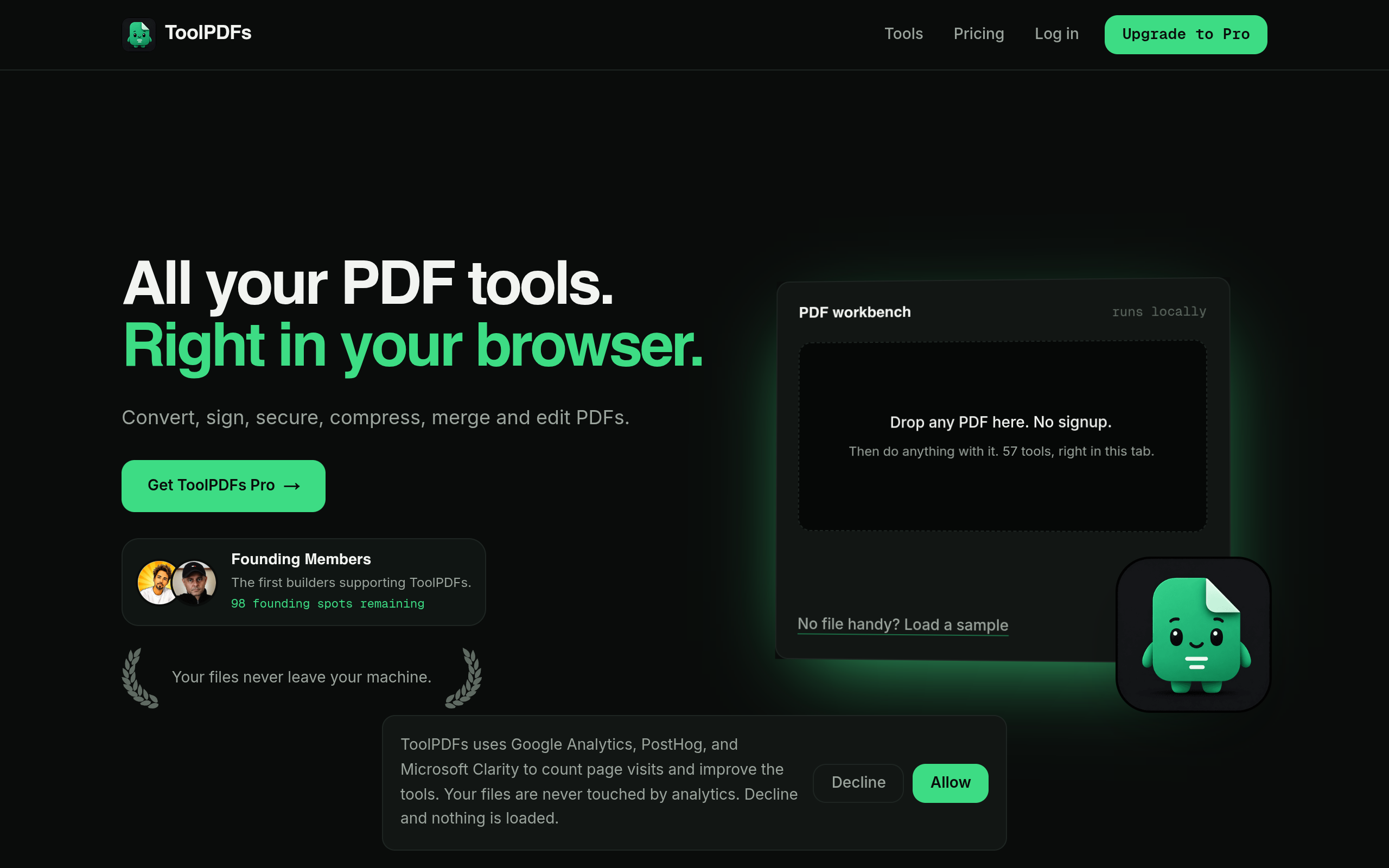
That question — where does your document actually go while you're signing it — is exactly what separates signing tools that quietly upload your file from ones that don't. ToolPDFs runs its signing and editing tools directly in the browser, so files are processed on your own device rather than sent to a server, which matters if you're a freelancer signing client contracts, a developer handling internal paperwork, or a small business professional working with anything containing personal or financial details. It's part of a wider workspace of 57 free and paid PDF, text, data, and developer tools, available with a free daily allowance or through monthly, annual, and lifetime plans for people who sign, convert, and edit documents regularly. No account or upload is required just to get a signature onto a page.
Try It In Your Browser
Sign PDF Documents
Draw, type, or place your signature on any PDF without creating an account.