 ToolPDFs
How to Convert Image to PDF: A Complete Step-by-Step Guide
Learn how to convert image to PDF on any device, merge multiple photos into one file, and avoid common quality and privacy mistakes.
Converting an image to PDF sounds like a one-click task until you actually need to do it — and then you run into questions nobody warns you about: Why does my JPG look blurry after conversion? How do I combine ten scanned pages into a single PDF instead of ten separate files? Is it safe to upload a photo of my passport or a signed contract to a random website? This guide walks through the actual mechanics of turning image files into a usable PDF document, on every major platform, with the tradeoffs that matter for quality, file size, and privacy.
Key Takeaways
- The fastest way to convert one or two images is a browser-based tool that processes files locally rather than uploading them to a server, especially for anything containing personal or financial information.
- To merge images into PDF as a single multi-page file, you need a tool built for batch conversion — most built-in OS "print to PDF" features only handle one image at a time.
- JPG, PNG, HEIC, and TIFF all behave differently when converted: HEIC often needs a format change first, and PNG transparency gets flattened onto a white background.
- Scanning apps on iPhone and Android can go straight from camera to PDF without a separate conversion step, which is usually faster than photographing a document and converting it afterward.
- Compress the resulting PDF if you're emailing it or uploading it to a form with a size limit — image-based PDFs are often far larger than text-based ones.
Why Convert Images to PDF in the First Place
A PDF isn't just a container for text — it's a fixed-layout document format that renders identically regardless of the device, operating system, or software opening it, which is exactly why the ISO standard behind PDF was built around consistent, portable rendering. Images, by contrast, are raw visual data with no page structure, no fixed size, and no easy way to combine several of them into one shareable file.
People usually need image-to-PDF conversion for one of a few specific reasons:
- Submitting scanned IDs, receipts, or signed forms where the recipient expects a single PDF, not a folder of photos
- Archiving multi-page documents (contracts, invoices, whiteboard photos) as one file instead of dozens of loose images
- Meeting a job application, visa, or government portal requirement that explicitly asks for PDF and rejects JPG or PNG uploads
- Printing or presenting a set of images in a fixed, non-editable layout
Understanding which of these applies to you actually changes the best method to use, which is why "how do I convert an image to PDF" has more than one right answer.
How to Convert a Single Image to PDF, Step by Step
For a single photo or screenshot, you have three realistic options: a browser-based converter, your operating system's built-in print function, or your phone's native tools.
Using an Online Image to PDF Converter
This is the most universal method because it works the same way regardless of whether you're on Windows, macOS, Chromebook, or Linux, and it doesn't require installing anything.
- Open the converter tool in your browser.
- Select or drag in the image file (JPG, PNG, WEBP, or similar).
- Choose page size and orientation if the tool offers it — Letter or A4 for documents, "fit to image" for photos you want preserved at their original aspect ratio.
- Convert and download the resulting PDF.
The one thing worth checking before you use any web-based converter: does it process the file in your browser, or does it upload the image to a remote server first? For a vacation photo, that distinction barely matters. For a scanned driver's license or a signed NDA, it matters a lot — once a file leaves your device, you're trusting a third party's storage and deletion policies. ToolPDFs' image-to-PDF tools run the conversion locally in the browser, so the file itself never has to be transmitted anywhere to complete the job.
Using Windows' Built-In Print to PDF
Windows has had a native "Microsoft Print to PDF" printer driver since Windows 10, and it works on any image you can open.
- Right-click the image file and choose "Print," or open it in Photos and select Print.
- Under Printer, choose Microsoft Print to PDF.
- Adjust orientation and fit if needed, then click Print.
- Choose a save location — Windows treats this like printing to paper, just saving a PDF instead.
This method is genuinely fine for a one-off conversion, but it's clunky for anything more than a single image, and the output quality depends heavily on the print settings you choose.
Using macOS Preview
On a Mac, Preview can export nearly any image format directly as a PDF without a separate converter:
- Open the image in Preview.
- Go to File > Export as PDF.
- Choose a filename and location, then save.
macOS also lets you print any image to PDF from the system print dialog by selecting "Save as PDF" from the PDF dropdown in the lower-left corner — functionally similar to the Windows method.
Using an iPhone or Android Phone
On iOS, the Files app and Photos app both support exporting to PDF, and Apple documents the process for saving files as PDF from Photos and Files as part of its iPhone user guide. On Android, Google's own guidance on printing to PDF from an Android device covers the built-in print-to-PDF option available from the share menu in Photos and most gallery apps — select the image, tap Share, choose Print, then select "Save as PDF" as the destination printer.
How to Convert Multiple Images to PDF (Merging Into One File)
This is where most people get stuck, because merging images into PDF is a fundamentally different operation than converting a single file. A single image-to-PDF conversion just wraps one picture in a PDF page. Combining ten images into one PDF requires the tool to stack multiple pages in a specific order inside a single document — something built-in OS print dialogs generally don't support well, since each print job typically maps to one file being printed.
The general workflow for multiple images to PDF:
- Gather all the image files in one folder and rename them so they sort in the order you want them to appear (e.g., "page-01.jpg," "page-02.jpg").
- Open a merge or batch conversion tool that accepts multiple image uploads.
- Arrange the thumbnails in the correct order — most tools let you drag to reorder after uploading, which is faster than pre-renaming files.
- Set a consistent page size across all images so the final document doesn't have pages of wildly different dimensions.
- Export as a single PDF.
A practical tip: if you're combining scanned pages of a contract or receipts for an expense report, keep every page at the same orientation before merging. Mixed portrait and landscape pages inside one PDF are technically valid but annoying to read, since the viewer has to rotate their screen or the document repeatedly.
Converting Different Image Formats to PDF: What Actually Changes
Not every image format behaves the same way once it becomes a PDF. Here's what to expect from the formats people convert most often:
| Format | Common Source | Conversion Notes |
|---|---|---|
| JPG / JPEG | Phone cameras, downloaded photos | Converts cleanly; some tools recompress the image, which can slightly reduce quality if compression is aggressive |
| PNG | Screenshots, graphics with transparency | Transparent areas get filled with white (or another background color) since PDF pages aren't transparent |
| HEIC | iPhone camera photos (default format since iOS 11) | Many converters can't read HEIC directly; you may need to convert to JPG first, or export as JPG from the iPhone share sheet |
| WEBP | Web images, some Android photos | Supported by most modern converters, but older or basic tools may not recognize it |
| TIFF | Scanners, professional photography | Large file sizes; often needs compression after conversion to be email-friendly |
| GIF | Web graphics | If animated, only a single frame converts — PDF has no concept of animation |
The Mozilla Developer Network's guide to image file types is a solid reference if you want to understand exactly how these formats differ technically, which is useful when a converter behaves unexpectedly with one format but not another.
HEIC deserves special attention since it trips up more people than any other format. Apple's cameras default to HEIC because it compresses more efficiently than JPG at similar quality, but it's a newer format that plenty of converters — especially older desktop software — simply don't support. If your tool rejects a HEIC file, the fastest fix is changing your iPhone's camera format to "Most Compatible" (Settings > Camera > Formats), which captures new photos as JPG going forward, or using the Photos share sheet to export an existing HEIC photo as JPG before converting it.
Scanning Physical Images and Documents to PDF
If you're starting from a physical document rather than an existing digital photo, scanning images to PDF directly is usually faster than photographing the document and converting the photo afterward, because dedicated scanning apps apply edge detection, perspective correction, and contrast adjustment automatically.
Both iOS and Android now include built-in document scanners:
- iPhone: Open the Notes app, tap the camera icon, select "Scan Documents," and the phone automatically detects page edges and corrects perspective. You can scan multiple pages in sequence before exporting the whole note as a single PDF.
- Android: Google Drive's scan feature (accessible from the "+" button, then Scan) works similarly, capturing multiple pages into one document before saving as PDF.
For a genuinely clean scan, a few habits matter more than which app you use:
- Use a flat, contrasting background so edge detection can find the document boundaries accurately.
- Scan in even, diffuse light — direct overhead light or flash creates glare that obscures text.
- Hold the camera directly above the page rather than at an angle, even though most scanning apps correct minor perspective skew automatically.
- Scan at the highest resolution the app offers if the document contains small text you might need to read later; you can always compress the file afterward.
Choosing an Image to PDF Converter Online: What to Actually Check
Most image-to-PDF tools look identical on the surface — drag an image in, get a PDF out — but they differ in ways that matter depending on what you're converting.
Where does the file actually go? This is the single biggest differentiator. Tools that process files locally in the browser never transmit the image to a server, which matters for anything sensitive: IDs, medical documents, signed contracts, financial statements. Tools that upload to a server for processing are fine for low-stakes conversions but introduce a dependency on that company's data handling practices.
Does it preserve image quality, or recompress aggressively? Some free tools apply heavy compression by default to keep their own server costs down, which can visibly degrade photos. Look for a tool that either preserves original resolution or gives you an explicit quality setting.
Can it handle batches, or only one file at a time? If you regularly need to merge images into PDF, a tool limited to single-file conversion will slow you down considerably.
Does it require an account or upload limit that blocks larger jobs? Many free web tools cap file size or daily usage; a browser like ToolPDFs' full library of PDF tools is worth checking if you need more than the occasional single conversion, since free and paid tiers vary in daily limits.
Does the output meet the recipient's requirements? Some government and legal portals specifically require PDF/A (an archival subset of PDF standardized for long-term storage), not just any PDF. If a form specifies PDF/A, check the PDF Association's overview of PDF/A before assuming a standard export will be accepted.
Common Problems When Converting Images to PDF (and How to Fix Them)
The PDF looks blurry even though the original photo was sharp. This usually means the converter downscaled or recompressed the image. Check for a quality or resolution setting before conversion, and avoid tools that don't expose any compression control.
The image appears rotated 90 degrees in the PDF. Phone photos store orientation as metadata (EXIF) rather than physically rotating the pixel data, and not every converter reads that metadata correctly. If this happens, rotate the image manually before converting, or use the rotate function most PDF tools offer after conversion.
The file size is much larger than expected. Image-based PDFs, especially from scanned documents at high resolution, can easily run into tens of megabytes. If you need to email the file or upload it to a portal with a size cap, compress the PDF afterward rather than re-scanning at a lower resolution — compression after the fact preserves more of your options.
Pages are in the wrong order after merging. This happens when a tool merges files in the order they were uploaded rather than a chosen sequence. Always check for a reorder/drag-to-sort step before finalizing a multi-image merge, and confirm the page order in the finished PDF before sending it anywhere important.
Transparent PNG areas turned black or white unexpectedly. PDF has no native transparency for full pages, so a transparent PNG background gets filled with a solid color during conversion — usually white, sometimes black depending on the tool. If the background color matters (e.g., a logo meant for a colored letterhead), flatten the PNG onto the correct background color yourself before converting.
Image to PDF vs. Other Formats: When PDF Is the Right Call
PDF isn't always the best destination format. It's the right choice when you need a fixed, non-editable layout that looks the same everywhere, when you're combining multiple pages into one file, or when a form or portal specifically requires it. It's arguably the wrong choice if you actually need the recipient to edit the content — a Word document or an editable form would serve that better — or if you're sharing a single photo casually, where the original JPG is simpler for everyone involved.
A rule of thumb: if the end goal is "this needs to be read, signed, printed, or archived exactly as it looks now," convert to PDF. If the end goal is "this needs to be edited, resized, or reused," keep the image in its native format and only convert when you're ready to finalize it.
Frequently Asked Questions
Can I convert an image to PDF without installing any software?
Yes. Browser-based converters, along with the built-in "Print to PDF" or "Export as PDF" functions in Windows, macOS, iOS, and Android, all handle image-to-PDF conversion without installing dedicated software.
How do I combine multiple photos into a single PDF file?
Use a tool built for batch or merge conversion rather than converting each image separately — upload all the images at once, arrange them in the order you want, and export them together as one multi-page PDF.
Why won't my iPhone photo convert to PDF?
It's likely saved in HEIC format, which some converters don't support. Export it as JPG from the Photos share sheet first, or switch your camera format to "Most Compatible" in Settings so future photos save as JPG automatically.
Does converting an image to PDF reduce its quality?
Not inherently — a well-built converter preserves the original resolution. Quality loss happens when a tool applies compression by default, so check for a quality or resolution setting if the source image needs to stay sharp.
What's the difference between a regular PDF and PDF/A when converting images?
PDF/A is a restricted version of the PDF standard designed for long-term archival, often required by legal or government portals. A standard PDF export usually isn't PDF/A-compliant unless the tool explicitly offers that option.
When the Conversion Involves Something You'd Rather Not Upload
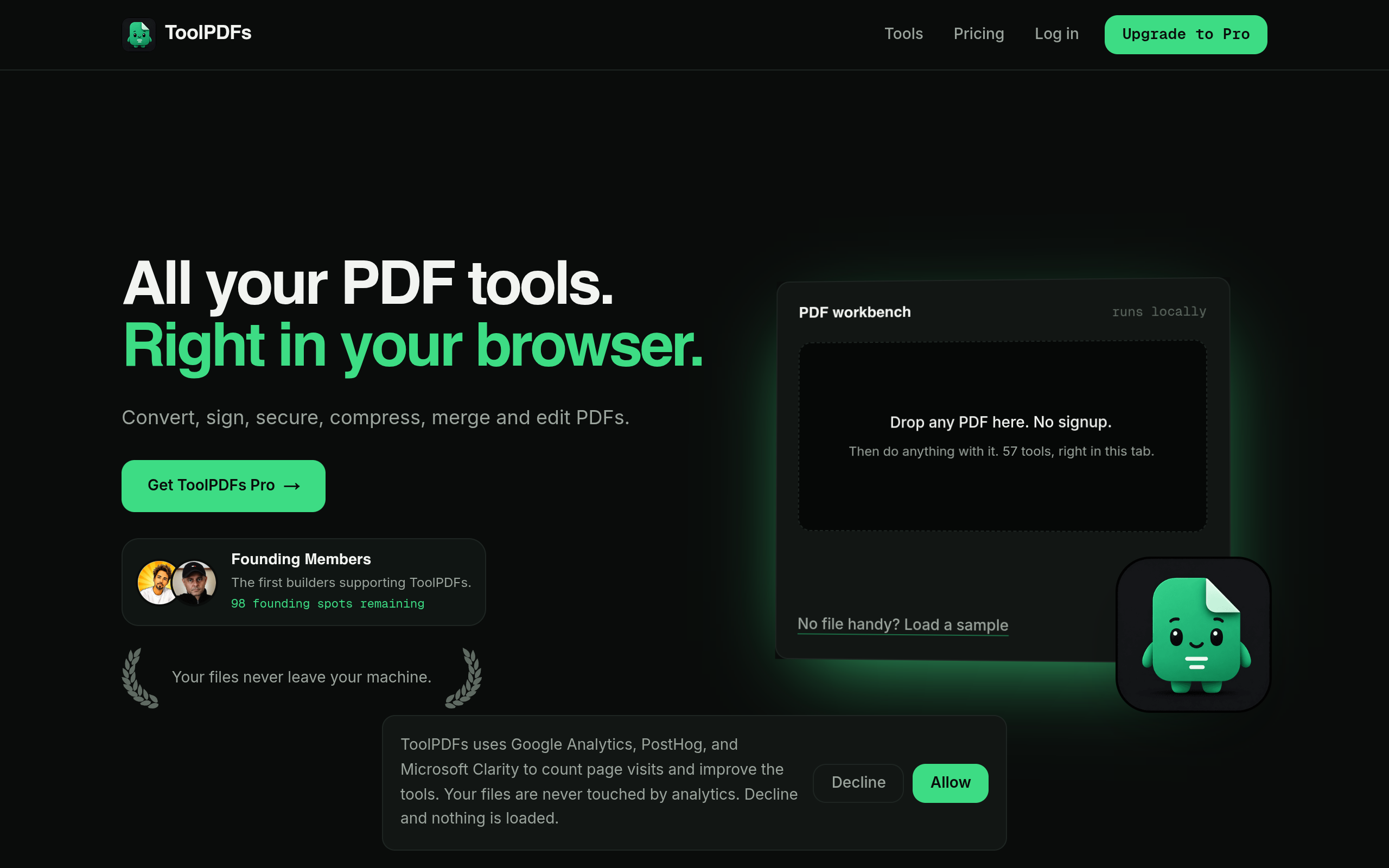
That distinction — whether a file needs to stay off someone else's server or not — is exactly the line most people don't think about until they're staring at a signed contract or a scanned ID with nowhere obvious to send it. ToolPDFs is built around that scenario: a browser-based workspace of 57 free and paid tools for converting, merging, compressing, signing, and securing PDFs, where files are processed locally in the browser instead of being uploaded anywhere. It's aimed at freelancers, solopreneurs, developers, and small business professionals who need fast document conversion without creating an account or trusting a third-party server with sensitive files. There's a free daily usage allowance for occasional conversions, plus monthly, annual, and lifetime plans for anyone doing this kind of work often enough to need more headroom.
Try It In Your Browser
Image to PDF Converter
Convert JPG and PNG images into a clean PDF document in seconds.