 ToolPDFs
How to Add a Watermark to a PDF: Text, Logo, and Batch Methods Explained
Learn how to add a watermark to a PDF using text, logos, or images—plus how to batch-watermark files, protect documents, and avoid common mistakes.
Adding a watermark to a PDF is one of those tasks that seems trivial until you actually need to do it correctly—centered but not obstructive, visible but not distracting, and applied to every page of a 40-page contract without missing one. This guide walks through exactly how to add a watermark to a PDF using text or a logo, how to do it for one file or a hundred, and what a watermark can and can't actually do for document protection.
Key Takeaways
- A watermark is either text (like "DRAFT" or "CONFIDENTIAL") or an image/logo layered semi-transparently over PDF pages, applied page-by-page or across an entire document at once.
- You can add one using a browser-based tool, desktop software like Adobe Acrobat or LibreOffice, or a command-line utility such as Ghostscript or qpdf—the right choice depends on volume, privacy needs, and whether you need to script the process.
- Opacity between 15–30%, diagonal placement, and a font size proportional to the page (not a fixed point size) are what separate a professional-looking watermark from an amateur one.
- A watermark deters casual copying and signals ownership, but it is not encryption, access control, or redaction—those are separate protections you may still need.
- For sensitive documents, check whether your watermarking tool uploads files to a server or processes them locally in the browser, since that distinction matters more than most people realize.
What a PDF Watermark Actually Does (and When You Need One)
A watermark is a layer of text or graphics placed over (or behind) the content of a PDF page. It doesn't change the underlying document content—it adds a visual element that appears on every page, or on selected pages, depending on how it's applied.
People reach for watermarks in a handful of recurring situations:
- Marking drafts. Contracts, manuscripts, and proposals often get a "DRAFT" or "NOT FOR DISTRIBUTION" stamp before final approval, so nobody accidentally treats a working version as the signed one.
- Branding. Freelancers, agencies, and small businesses stamp a logo watermark on invoices, proposals, or reports to reinforce identity every time the file is opened or printed.
- Discouraging unauthorized reuse. Photographers, designers, and course creators watermark PDFs with their name or company mark so that screenshots or reprints are harder to pass off as unattributed work.
- Signaling confidentiality. Legal, HR, and financial documents frequently carry a "CONFIDENTIAL" or "INTERNAL USE ONLY" watermark as a visible reminder of handling rules, even though the watermark itself enforces nothing.
The common thread is communication, not security. A watermark tells a human reader something about the document's status. Anyone expecting it to function like a lock should read the section on what a watermark can't do before relying on one.
How to Add a Watermark to a PDF, Step by Step
Regardless of which tool you use, adding a watermark to a PDF follows the same general sequence: open the file, choose text or image, set its appearance, choose which pages it applies to, and export. The details differ slightly between text and logo watermarks.
Adding a Text Watermark
- Open the PDF in your chosen tool (browser-based tool, desktop app, or PDF editor).
- Enter the watermark text. Common choices: DRAFT, CONFIDENTIAL, SAMPLE, COPY, or a company name and date.
- Set rotation. A 45-degree diagonal is the standard because it's visible without following the natural reading direction of body text, making it harder to crop out cleanly.
- Set opacity. Somewhere between 15% and 30% keeps the underlying text legible while still making the watermark obvious. Full opacity (100%) is almost always too aggressive unless the goal is specifically to obscure content.
- Choose font size relative to page size, not a fixed point value, so the watermark scales sensibly across letter, A4, or legal-sized documents.
- Select the page range. All pages, a specific range, or just the cover page—decide before applying, since re-running the process on an already-watermarked file can create duplicate layers.
- Export or save as a new file, keeping the original untouched in case you need an unmarked version later.
Adding a Logo or Image Watermark
Logo watermarking follows the same steps with a few additional considerations:
- Use a PNG with a transparent background, not a JPEG. JPEGs carry a white or colored background that will sit as an opaque box on top of your content, which almost never looks intentional.
- Watch the aspect ratio. Stretching a logo to fit a placeholder box distorts it in ways that are obvious on a full-page document even if they're subtle in a thumbnail preview.
- Position logos in a corner or center, depending on intent. A centered, large, semi-transparent logo reads as a security/branding mark across the whole page. A small logo in the bottom corner reads more like a footer or letterhead element.
- Test at actual print size. A logo watermark that looks fine on a 13-inch laptop screen can look pixelated or oversized once the PDF is printed at full resolution.
Choosing a Method: Online Tools, Desktop Software, or Command Line
There isn't one correct way to watermark a PDF—the right method depends on how often you're doing it, how many files you're processing, and how sensitive the content is.
| Method | Best for | Batch support | Learning curve | Privacy consideration |
|---|---|---|---|---|
| Browser-based watermark tool | One-off or occasional watermarking, no software install | Varies by tool | Low | Check whether files upload to a server or process locally in-browser |
| Adobe Acrobat (desktop or web) | Users already paying for Acrobat, advanced page-level control | Yes, via Action Wizard | Moderate | Cloud features may sync/store files depending on settings |
| LibreOffice / OpenOffice | Free desktop editing without a subscription | Manual, page by page | Moderate | Fully local, no upload |
| Command line (Ghostscript, qpdf) | Developers, repeatable automated workflows | Yes, fully scriptable | High | Fully local, ideal for sensitive or regulated files |
| Python (PyPDF2 / pypdf, reportlab) | Custom watermark logic, dynamic per-document text (e.g., recipient name) | Yes, fully scriptable | High | Fully local |
For most individuals watermarking a handful of documents a month—freelancers sending proposals, small business owners marking invoices—a browser-based tool or desktop editor is faster than learning command-line syntax. For developers or teams that need to watermark hundreds of generated PDFs identically (say, adding a per-user access ID to every downloaded report), scripting with a library like pypdf or a command-line tool is the more maintainable path, since it can be folded directly into an existing pipeline. Ghostscript's documentation covers the underlying PDF manipulation commands if you want to go that route.
If you're comparing tools, it's worth looking at how each one is actually built—some browser-based PDF tools process files locally on your device rather than sending them to a server, which is a meaningfully different privacy posture than a typical cloud upload-and-download tool.
Getting the Placement, Opacity, and Layering Right
The technical steps for adding a watermark are simple; getting one that looks intentional rather than accidental is where most people go wrong. A few specifics:
- Diagonal vs. horizontal. Diagonal (typically 45°) is standard for "status" watermarks like DRAFT or CONFIDENTIAL because it cuts across the reading flow, making the mark impossible to ignore without also being distracting. Horizontal placement is more common for logo watermarks meant to sit quietly in a header or footer.
- Behind text vs. in front of text. Watermarks can be layered behind the page content (so body text sits on top and remains fully crisp) or in front of it (so the watermark is the top layer, slightly obscuring text beneath). Behind-text placement generally looks more professional for documents that still need to be read normally; in-front placement is more common when the goal is explicitly to discourage clean reproduction.
- Opacity by use case: branding logos often sit at 10–20% opacity so they don't compete with content; status stamps like DRAFT or SAMPLE are more commonly 25–40% since visibility matters more than subtlety.
- Consistent placement across pages. If a watermark shifts position between pages due to varying page sizes or margins in the source document, it reads as a rendering error rather than an intentional design choice. Preview multiple pages, not just the first, before finalizing.
Watermarking Multiple Files at Once
Batch watermarking matters the moment you're dealing with more than a handful of files—an accountant marking a folder of client statements as CONFIDENTIAL, or a course creator stamping their name across dozens of PDF lesson downloads.
A few practical approaches:
- Batch mode in a desktop or browser tool. Many tools let you select a folder or multiple files and apply the same watermark settings to all of them in one pass, rather than repeating the manual steps per file.
- Command-line loops. A simple shell script calling qpdf or Ghostscript against every file in a directory can watermark hundreds of PDFs unattended, which is the practical ceiling for manual tools.
- Scripted generation with dynamic text. If each watermark needs to differ per file—say, embedding a recipient's name or a unique document ID—a Python script using a PDF library to overlay per-file text is more reliable than any manual batch tool, since it can pull values from a spreadsheet or database.
Whichever route you take, watermark a small test batch first and open a few resulting files fully—not just the thumbnail—before committing to a large run. Free tiers on most tools cap daily file counts or file size, so if watermarking large batches is a recurring part of your workflow rather than an occasional task, it's worth comparing what different pricing tiers actually allow before you're mid-batch and blocked.
Does a Watermark Actually Protect a PDF? What It Can and Can't Do
This is the question most "how to watermark" guides skip, and it matters. A watermark is a visual deterrent, not a technical control.
What a watermark does:
- Makes casual redistribution more obvious and less appealing (a screenshot with your name diagonally across it is less useful to a plagiarist).
- Signals document status (draft, confidential, sample) to anyone opening the file.
- Reinforces branding on repeated views of a shared document.
What a watermark does not do:
- It does not prevent copying, printing, editing, or extracting text—those require actual permission restrictions or encryption.
- It does not prevent someone from cropping, editing, or removing the watermark itself if they're motivated enough and have basic PDF editing tools.
- It does not hide or redact sensitive content underneath it—text and images under a watermark layer are often still selectable and extractable unless the document is flattened.
Watermark vs. Password Protection vs. Redaction
These three are frequently confused because they all fall under "protecting a PDF," but they solve different problems:
| Protection type | What it actually does | What it doesn't do |
|---|---|---|
| Watermark | Adds a visible mark for branding or status | Doesn't restrict access, copying, or editing |
| Password protection | Restricts who can open or edit the file (encryption) | Doesn't stop someone with the password from screenshotting or redistributing content |
| Redaction | Permanently removes or blacks out specific sensitive content | Doesn't apply to the rest of the document; must be done correctly to avoid leaving extractable data underneath a visual black box |
If the actual goal is preventing unauthorized access, password protection (ideally with strong encryption, not just a "restrict editing" permission flag) is the relevant tool—the Adobe Acrobat documentation on password and permission settings covers the distinction between an "open password" and a "permissions password" well. If the goal is removing sensitive data before sharing—like redacting social security numbers or account details—true redaction tools are needed, and NIST's guidance on document sanitization is a useful reference for understanding why a simple black rectangle over text often isn't sufficient, since the underlying text can remain in the file's data layer. Watermarking, password protection, and redaction are frequently used together on the same document, each solving a different part of the protection problem.
Common Watermarking Mistakes to Avoid
- Applying a watermark at 100% opacity, which usually makes the underlying document unreadable and looks like an error rather than a design choice.
- Using a JPEG logo with a white background, which shows up as an opaque rectangle instead of blending into the page.
- Watermarking a scanned image PDF and expecting selectable text underneath—scanned pages are images, so a watermark sits on top of a flat picture, not editable text.
- Re-watermarking an already-watermarked file, resulting in stacked, overlapping marks that are difficult to remove cleanly afterward.
- Forgetting to check every page, especially in documents with mixed page sizes or orientations (a mix of portrait and landscape pages, for instance), where a watermark sized for one orientation can look wrong on the other.
- Not keeping an unmarked master copy. Once a watermark is flattened into an exported file, removing it cleanly later is difficult; always keep the original document safe elsewhere.
Where Your File Actually Goes: A Privacy Note on Online Watermark Tools
Most "add watermark to PDF online" tools work the same basic way from the user's perspective: upload a file, set watermark options, download the result. What differs—and what most people never check—is what happens to the file in between.
Some online tools upload your PDF to a remote server, process it there, and return the result, which means your document (contracts, financial statements, client files) briefly exists on infrastructure you don't control, even if it's deleted afterward per the provider's stated policy. Other tools, increasingly common as browser capabilities have improved, process the file entirely client-side—meaning the PDF never leaves your device at all; the watermarking happens in your browser's memory and the file is downloaded directly back to you.
For a birthday invitation or a public flyer, this distinction is mostly academic. For a signed contract, a client financial report, or anything covered by confidentiality obligations, it's worth a few seconds to check. The provider's about page or privacy policy will usually state directly whether processing happens locally or on a server—and if it doesn't say either way, that's itself useful information. If keeping documents off someone else's infrastructure is a hard requirement for your work rather than a nice-to-have, the tool you choose matters as much as the watermark settings you apply within it.
FAQ
Can I add a watermark to a PDF without any software?
On most modern browsers, yes—many web-based watermark tools let you drag in a file, set text or an image, and download the result without installing anything, though it's worth confirming whether the tool processes the file locally or uploads it to a server first.
Will a watermark stop someone from copying my PDF?
No. A watermark is a visual deterrent, not an access control; preventing copying or editing requires setting document permissions or encryption, which is a separate step from watermarking.
Can I remove a watermark from a PDF after adding it?
If you kept your original, unmarked file, simply use that instead. If the watermark was flattened into the only copy you have, removing it cleanly is difficult and unreliable, which is why keeping a separate master file matters.
What file format should my logo be for a watermark?
Use a PNG with a transparent background rather than a JPEG—JPEGs include a solid background color that will appear as an opaque box over your document instead of blending in.
Is watermarking every page necessary, or just the first?
It depends on intent: branding logos are often applied to every page for consistency, while status marks like DRAFT are sometimes applied only to a cover page. If deterring redistribution is the goal, every page should carry the mark, since a single page can easily be separated and shared alone.
When the Tool Itself Is the Privacy Decision
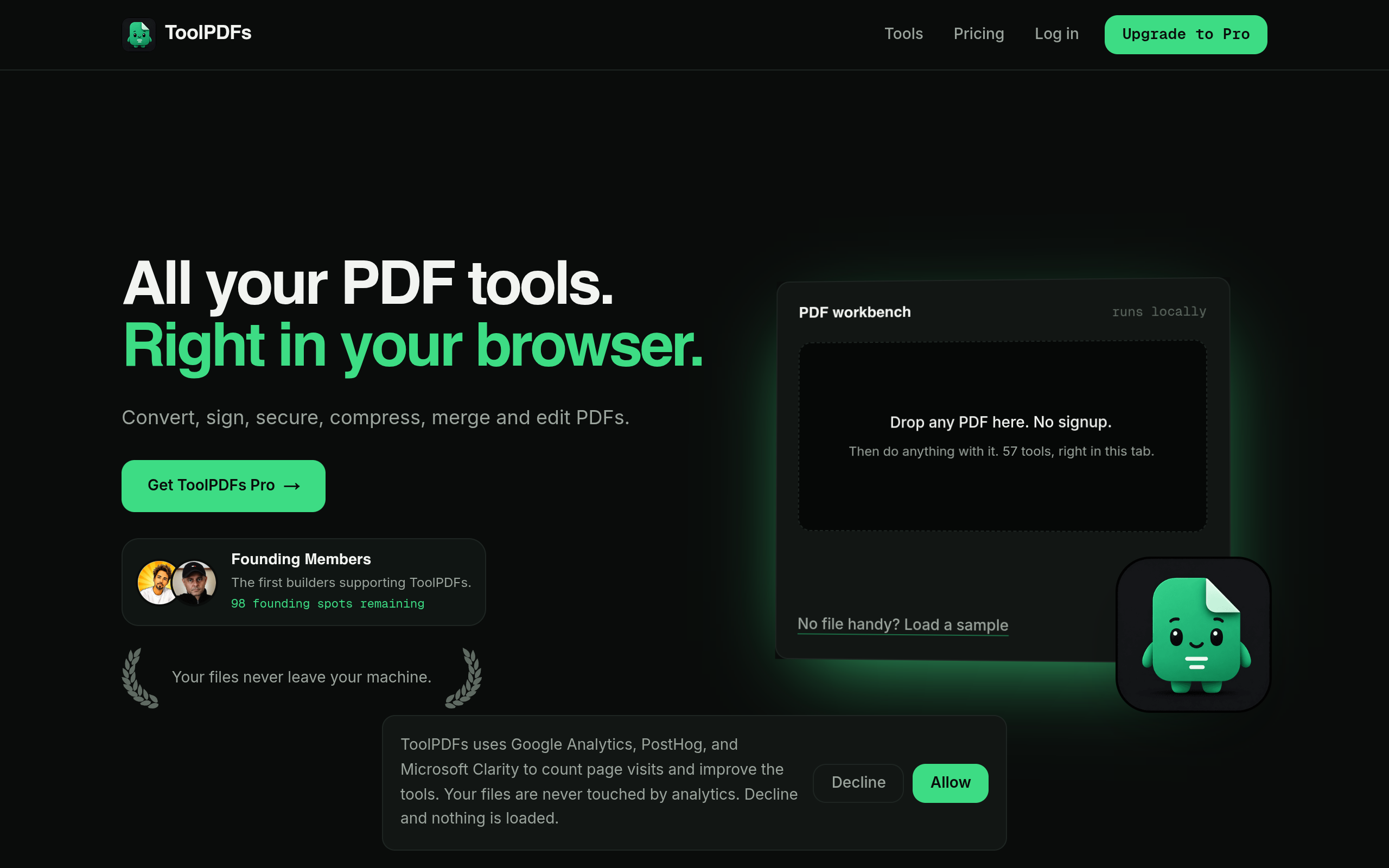
That last point is worth sitting with: for a contract, invoice, or client report, the tool you pick to add a watermark matters as much as the watermark settings themselves. ToolPDFs is built around that idea directly—it's a browser-based workspace with 57 free and paid tools for converting, organizing, compressing, signing, and securing PDFs, and files are processed locally in the browser rather than uploaded to a server. That makes it a straightforward option for freelancers, developers, and small business professionals who need quick watermarking or other document edits without sending sensitive files anywhere else. There's a free daily usage allowance for occasional use, with monthly, annual, and lifetime plans available for anyone watermarking or editing PDFs regularly.
Try It In Your Browser
Fast, Private PDF Tools
Access our full suite of free in browser PDF utilities. No server uploads, total privacy.