 ToolPDFs
Free PDF Compression Tool: How to Shrink a PDF Without Wrecking the Quality
Learn how free PDF compression tools actually work, which settings to use for email, web, or print, and how to avoid blurry scans or broken forms.
A PDF that won't fit in an email, a portfolio that takes forever to upload, a scanned contract that's somehow 40 MB — these are the moments people go searching for a free PDF compression tool. The good news is that shrinking a PDF is a well-understood problem with predictable trade-offs, not a mystery you need paid software to solve.
This guide explains what actually makes PDFs bloated, how compression algorithms reduce that size, which free tools handle which scenarios best, and how to pick compression settings so you don't trade a smaller file for a blurry or broken one.
Key Takeaways
- Most oversized PDFs are bloated by images, not text — scanned pages and high-resolution photos are almost always the biggest contributor to file size.
- Free online PDF compressors typically use the same core techniques as paid tools: image downsampling, recompression, and font subsetting — the differences are in limits, ads, and where your file is processed.
- "Lossless" and "lossy" compression exist on a spectrum; choosing the right setting depends on whether the file is going to email, the web, print, or long-term archive.
- Browser-based tools that process files locally avoid the privacy trade-off of uploading sensitive documents to a third-party server.
- If a compressed PDF looks fine on screen but text turns fuzzy when printed, you compressed images more aggressively than the document actually needed.
What Actually Makes a PDF File Large
A PDF isn't one blob of data — it's a container holding several different kinds of content, and each one affects file size differently.
Embedded images and scans. This is the single biggest culprit. A page scanned at 600 DPI in full color can weigh several megabytes on its own, and a 20-page scanned contract can easily balloon past 50 MB. Scanned PDFs are essentially photographs of paper, so every page carries full image data even though it's just text you're reading.
Fonts. PDFs often embed entire font files so the document renders identically on any device. If a file uses several typefaces, or embeds a full font when it only uses a handful of characters, that adds unnecessary weight.
Uncompressed or redundant objects. Older PDF-generation tools, or files that have been edited many times, can accumulate duplicate images, unused objects, and leftover data from previous edits that never gets cleaned up.
Metadata and embedded resources. Comments, form fields, embedded fonts, color profiles, and even revision history can pile up, especially in files that have passed through multiple editing tools over time.
Understanding which of these applies to your file matters, because a compressor tuned for scanned images won't do much for a 200-page text-only report, and vice versa.
How PDF Compression Actually Works Under the Hood
Compression tools generally attack the problem from a few angles at once:
- Image downsampling — reducing the resolution of embedded images (say, from 600 DPI to 150 DPI) since most screens and even most printed output don't need scan-level resolution to look sharp.
- Recompressing images — re-encoding images using more efficient formats or higher JPEG compression ratios, similar to what happens when you save a photo at a lower quality setting.
- Font subsetting — keeping only the glyphs actually used in the document instead of the entire font file.
- Removing redundant data — stripping unused objects, duplicate resources, and metadata that don't affect what the reader sees.
- Stream compression — applying algorithms like Flate (zlib-based) compression to the underlying PDF content streams, which is part of the ISO 32000 PDF specification itself.
This is largely the same logic that command-line tools like Ghostscript use, and it's the same logic behind Adobe's own compression feature in Acrobat. The differences between free and paid tools usually come down to how much control you get over these settings, not whether the underlying technique is different.
Free vs. Paid PDF Compression: What Actually Changes
People often assume a paid tool must compress "better," but that's rarely the real difference. Here's a more honest breakdown:
| Factor | Free online compressors | Desktop tools (e.g., Ghostscript) | Paid/subscription tools |
|---|---|---|---|
| Compression quality | Comparable for most everyday files | Highly configurable, best for power users | Comparable, sometimes with more presets |
| File size limits | Often capped (e.g., 10–50 MB per file) | No inherent limit | Usually higher or unlimited |
| Daily usage limits | Common on free tiers | None | Rare |
| Ease of use | Drag, drop, done | Requires command-line comfort | Polished UI |
| Privacy | Depends entirely on whether processing happens locally or server-side | Fully local | Varies by vendor |
| Batch processing | Sometimes restricted on free plans | Fully scriptable | Usually included |
The practical takeaway: for a handful of files a month, a free compressor is almost always enough. The real decision point is volume (do you compress dozens of files a day?) and sensitivity (does the document contain anything you don't want passing through someone else's server?).
Server-Upload vs. Browser-Based Compression: The Privacy Trade-off Nobody Mentions
Most "free online PDF compressor" services work the same way: you upload your file to their server, their backend runs the compression, and you download the result. That's fine for a public flyer or a template. It's a different calculation for a signed contract, a medical record, a tax document, or anything under an NDA.
A growing category of browser-based workspaces handles this differently — the compression runs locally in your browser using JavaScript or WebAssembly, and the file never leaves your device. The MDN WebAssembly documentation is a good technical reference if you want to understand how browsers can now run near-native-speed code for tasks like image recompression without a server round-trip at all.
If you're compressing sensitive files regularly, it's worth checking — before you upload anything — whether a tool's privacy policy actually states that files are processed client-side, or whether that claim is just implied by fast turnaround times. Those aren't the same thing.
Step-by-Step: How to Reduce PDF File Size With a Free Tool
- Identify why the file is large. Open it and check: is it mostly scanned pages, high-res photos, or dense text with many fonts? This determines which settings matter.
- Pick a compression target. Decide where the file is going — email, a web upload form, a print shop, or long-term storage — because that determines how aggressive you can safely be (see the table below).
- Run a first pass at a moderate setting. Most tools offer "low/medium/high" or "screen/print/prepress" presets. Start in the middle rather than the most aggressive option.
- Check the result at 100% zoom, not just a thumbnail. Zoom into any text-heavy scanned pages specifically — that's where quality loss shows up first.
- Re-run at a lower setting only if needed. If the file is still too large, most tools let you increase compression before you accept a quality hit you didn't need to take.
- Verify anything interactive still works. If the PDF has form fields, hyperlinks, bookmarks, or digital signatures, confirm they survived the process — some aggressive compressors strip or break these.
Choosing the Right Compression Level for Your Use Case
Not every PDF needs the same treatment. Compressing a document for email is a very different job than compressing one for professional printing.
| Destination | Recommended approach | Typical target resolution |
|---|---|---|
| Email attachment | Medium-high compression, downsample images | ~150 DPI |
| Website upload / online form | High compression, prioritize small size | 96–150 DPI |
| Internal review / archive copy | Light compression, preserve readability | 200–300 DPI |
| Professional printing | Minimal or no lossy compression | 300 DPI or original |
| Scanned legal/medical documents | Light compression only, verify text legibility | 200+ DPI |
A simple rule of thumb: the less someone needs to zoom in, crop, or reprint the document, the more aggressively you can compress it.
Common Problems When Compressing PDFs (and How to Avoid Them)
Blurry or pixelated scanned text. This happens when image downsampling goes too far for a document made up entirely of scanned pages rather than real text. If legibility matters — contracts, IDs, receipts for tax purposes — use a lighter setting or run OCR first so the underlying text becomes selectable and less dependent on image resolution.
Broken hyperlinks or form fields. Some compressors flatten a PDF's structure to save space, which can strip interactive elements. If your document needs to stay fillable or clickable, check this specifically after compressing — don't assume it survived.
Font substitution artifacts. Occasionally, subsetting fonts too aggressively causes rendering differences on other devices. This is more common with unusual or licensed fonts than with standard system fonts.
Compression that barely helps. If a file is already mostly text with few images, running it through a compressor won't shrink it much — the size probably isn't image-related, so check for embedded attachments, revision history, or bloated fonts instead.
Best Free PDF Compressors, Compared Honestly
There's no single "best" free PDF compressor — the right pick depends on file sensitivity, volume, and how much control you want.
- Browser-based, local-processing tools are the strongest fit if privacy matters and you're compressing occasional files without wanting to install anything — no upload step at all.
- Cloud-based drag-and-drop services (the most commonly ranked category) are convenient and usually free for light use, but almost always upload your file to a server first and cap file size or daily usage on free tiers.
- Command-line tools like Ghostscript give you the most granular control — exact DPI targets, specific compression presets — but require comfort with terminal commands and aren't realistic for non-technical users.
- Built into Adobe Acrobat or similar suites, compression is convenient if you already pay for the software, but it's rarely worth a subscription if compression is the only feature you need.
For developers or teams evaluating multiple document tools at once, it's worth comparing the full range of available utilities rather than picking a single-purpose compressor in isolation — compression is often just one step in a larger conversion, signing, or organizing workflow.
FAQ
Does compressing a PDF reduce its quality permanently?
It depends on the method. Lossy techniques like image downsampling and aggressive JPEG recompression do permanently discard detail, while lossless techniques like removing metadata or optimizing internal data structures don't affect visual quality at all.
How much can I realistically shrink a PDF?
For scanned or image-heavy PDFs, reductions of 50–90% are common because the original scan resolution is usually far higher than needed. For text-heavy PDFs with few images, expect much smaller gains — often under 20% — since there's less redundant data to strip.
Will compressing a PDF break its digital signature?
Often, yes. Any modification to a digitally signed PDF, including compression, typically invalidates the signature because signatures are cryptographically tied to the exact file contents. Compress before signing, not after — see the PDF Association's resources on digital signatures for more on how this works.
What's the difference between compressing and just lowering image quality in a scanner?
Scanning at a lower resolution from the start avoids the problem entirely and often produces better results than scanning high and compressing after, since you're not throwing away detail you already captured at a cost.
Is it safe to compress confidential documents using a free online tool?
Only if you know how the tool handles your file — many free compressors upload the document to a server to process it, which isn't appropriate for confidential material; tools that process files locally in your browser avoid that exposure entirely.
When 'Free' Shouldn't Mean Uploading Your Contract to Someone Else's Server
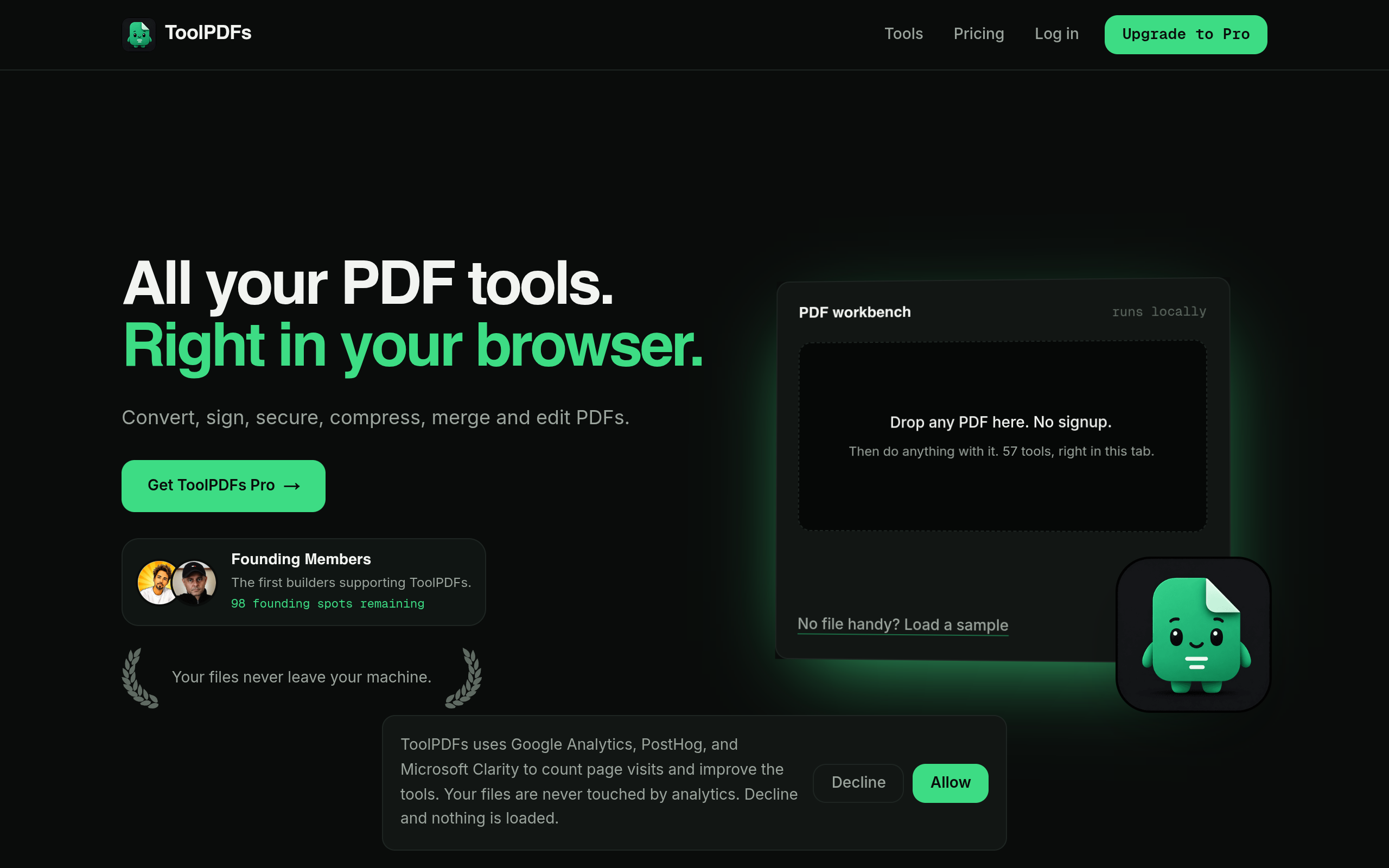
That last point is the one worth sitting with: a compression tool can shrink your file perfectly and still be the wrong choice if it required uploading a confidential document somewhere you can't verify. ToolPDFs is built around that distinction — it's a browser-based workspace with 57 free and paid tools for compressing, converting, organizing, signing, and securing PDFs, where files are processed locally in the browser instead of being sent to a server. That matters most to freelancers, small business professionals, and developers handling client contracts, financial records, or proprietary code who need a quick fix without a signup or a privacy trade-off. A free daily allowance covers occasional use, with monthly, annual, or lifetime plans available for anyone running these tasks constantly.
Try It In Your Browser
Compress PDF Privately
Reduce PDF file size quickly with zero server uploads and complete privacy.