 ToolPDFs
The Fastest PDF Compression Methods: A Practical Speed Comparison
Compare the fastest PDF compression methods available today, from browser-based tools to command-line utilities, and learn how to shrink files without losing quality.
If you've ever needed to email a 40MB PDF and watched the upload bar crawl, you already know why speed matters as much as file size when it comes to compression. Not every "PDF compressor" is actually fast — some route your file through a server, queue it, process it, and send it back, which adds minutes to what should take seconds. This guide breaks down the fastest PDF compression methods available right now, ranks them by real-world speed and practicality, and shows you how to avoid the bottlenecks that make compression feel slower than it needs to be.
Key Takeaways
- Browser-based, in-memory compression is generally the fastest method available because it skips the upload/download round trip entirely.
- Command-line tools like Ghostscript are extremely fast for technical users and ideal for scripting batch jobs across dozens or hundreds of files.
- The biggest speed drain in most workflows isn't the compression algorithm — it's file transfer time to and from a server.
- Image downsampling (reducing DPI on embedded photos and scans) typically produces the largest size reduction with the least visible quality loss.
- For recurring or bulk work, batch PDF compression with consistent settings saves far more time than compressing files one at a time.
What Actually Makes PDF Compression "Fast"?
When people search for the fastest way to compress a PDF, they usually mean one of two things: how quickly the tool processes the file, or how quickly they can go from "I have a bloated PDF" to "I have a smaller PDF I can send." Those aren't the same thing, and mixing them up is where a lot of confusion starts.
Actual processing speed depends on a handful of factors:
- File size and page count — a 200-page scanned report takes longer to reprocess than a 5-page invoice, regardless of the tool.
- What's inside the PDF — image-heavy PDFs (scans, photos, design files) take longer to recompress than text-heavy documents, because images require re-encoding while text and vector graphics usually just need font subsetting or object stream optimization.
- Where the processing happens — local (in your browser or on your machine) versus remote (uploaded to a server, processed, then downloaded).
- The compression algorithm itself — most tools use JPEG/DCT recompression for raster images and stream compression (like Flate/zlib) for text and vector content, per the PDF specification maintained by ISO. The algorithm choice matters less for speed than the first three factors.
The factor most people underestimate is where the processing happens. Uploading a large file to a server, waiting in a queue, and downloading the result can easily take longer than the actual compression step. That's the core reason browser-based and local tools tend to win speed comparisons — they remove two of the three slowest parts of the process.
The Fastest PDF Compression Methods, Ranked by Real-World Speed
Here's how the main approaches stack up, from fastest to slowest in typical day-to-day use.
1. Browser-based, client-side compression
Tools that process files directly in your browser — using JavaScript or WebAssembly rather than uploading to a server — are generally the fastest option for single files and small batches. Because there's no upload or download step, the only time cost is the actual compression computation, which for most PDFs under 50MB takes a few seconds. Modern browsers can run compiled compression libraries at near-native speed through WebAssembly, which is what makes this approach viable for anything beyond trivial file sizes. This method is also the most private, since the file never leaves your device — a meaningful factor for anyone handling contracts, financial records, or client documents.
2. Command-line tools (Ghostscript, qpdf, mutool)
For developers and technically comfortable users, command-line compression is arguably the fastest method of all, especially at scale. Ghostscript's documentation outlines the -dPDFSETTINGS flag, which lets you apply preset compression profiles (/screen, /ebook, /printer) in a single command with no GUI overhead. A single Ghostscript call can process a file in well under a second for typical document sizes, and because it's scriptable, you can loop it across an entire folder without touching a mouse. The tradeoff is setup time and a learning curve — this isn't a "fastest" method for someone who just needs to compress one PDF right now.
3. Desktop software with batch processing
Desktop PDF editors (Adobe Acrobat, PDF-XChange, and similar tools) offer built-in compression with batch capabilities. Speed here is decent once the software is installed and licensed, but the initial setup — installation, account sign-in, license activation — adds friction that browser-based and command-line tools skip entirely. Adobe's own compression guidance is a solid reference for understanding the quality presets these tools typically expose (high, medium, low resolution targets).
4. Cloud-based web compressors
Traditional "upload your file" web tools are the most familiar option but usually the slowest in practice, because every file makes a round trip: upload, server-side processing, download. For a single small file this might only cost a few extra seconds; for larger files or slower connections, upload time alone can exceed the actual compression time. This category also raises privacy questions, since the file sits on a third-party server, even briefly.
5. Manual settings adjustment inside a PDF editor
Manually opening a PDF, hunting through image quality settings, and re-exporting is the slowest method on this list — not because the software is slow, but because the process requires the most human decision-making. It's useful when you need fine control over exactly which images get downsampled and by how much, but it's not a "fast" method by any reasonable definition.
Speed Comparison Table
| Method | Typical Processing Time | Setup Required | Best For | Privacy |
|---|---|---|---|---|
| Browser-based (client-side) | Seconds, no transfer delay | None | Quick one-off files, sensitive documents | High — file stays on device |
| Command-line (Ghostscript, qpdf) | Under a second per file | Install + basic CLI knowledge | Developers, automated batch jobs | High — runs locally |
| Desktop software batch mode | Seconds to a minute, plus install time | Software install/license | Recurring office workflows | Medium — depends on software |
| Cloud upload-based compressor | Upload + process + download time | None, but account sometimes required | Occasional use, non-sensitive files | Lower — file leaves your device |
| Manual settings in a PDF editor | Minutes, due to manual steps | Familiarity with the software's UI | Fine-tuned control over specific images | Depends on the editor |
How to Compress a PDF Quickly Without Losing Quality
Speed and quality aren't opposites if you target the right thing to compress. Most PDF bloat comes from one of three sources, and knowing which one applies changes your strategy:
- Uncompressed or high-resolution images — this is the most common cause of large PDFs, especially scanned documents. Downsampling images to 150–200 DPI for on-screen viewing (versus print-quality 300 DPI) is usually the single biggest size reduction available, often shrinking files by more than half with minimal visible difference on a screen.
- Embedded fonts — documents with multiple full font sets embedded (rather than subsetted to only the characters used) carry unnecessary weight. Font subsetting is fast and nearly always safe to apply.
- Redundant or uncompressed object streams — older PDFs or ones generated by certain software don't compress internal object streams efficiently. Re-saving with stream compression enabled (Flate/zlib) recovers this space with zero visual impact.
A practical, fast workflow looks like this:
- Identify whether the PDF is mostly scanned images, mostly text, or mixed.
- For image-heavy files, apply a medium compression preset (equivalent to Ghostscript's
/ebooksetting) rather than manually adjusting each image. - For text-heavy files, rely on font subsetting and stream compression — image downsampling won't help much here.
- Preview the result before sending; if text becomes blurry or images pixelate noticeably, step up one quality tier and recompress. This takes seconds with local tools and is the fastest way to avoid over-compressing.
Batch PDF Compression: Speeding Up Multi-File Workflows
Compressing files one at a time is fine for occasional use, but it's the wrong approach if you're regularly handling multiple documents — client deliverables, scanned intake forms, monthly reports. Batch PDF compression turns a repetitive task into a single action, and it's where the time savings compound the most.
A few principles make batch compression genuinely fast rather than just theoretically batch-capable:
- Use one consistent preset across the batch. Mixing quality settings file by file defeats the purpose of batching and reintroduces manual decision-making.
- Separate scanned/image-heavy files from text-heavy files into different batch runs. Applying the same aggressive image-downsampling settings to a text-only contract does nothing useful and risks unnecessary artifacts if any embedded images are present.
- Automate naming and output folders. If a batch tool dumps compressed files into the same folder as originals without a naming convention, you'll spend more time sorting files than you saved compressing them.
- Script it if you're doing this weekly or more. A short shell script wrapping a command-line compressor, or a scheduled task, removes the human bottleneck entirely for recurring jobs like nightly report processing.
One-Click Compression vs. Manual Settings: When Each Wins
One-click compression — a single button that applies a sensible default preset — is the fastest option for the vast majority of everyday use cases: emailing a document, uploading to a portal with a size limit, archiving a scanned form. It removes decision fatigue and gets you a smaller file in the time it takes to click.
Manual settings earn their keep in narrower situations: preparing files for professional printing where color fidelity and resolution thresholds matter, working with legal or medical documents where every element needs to remain legible at full zoom, or compressing files that mix radically different content types (a report with both vector charts and high-resolution photography, for instance). If you're not in one of those situations, reaching for manual controls is usually just adding time without adding benefit.
Common Bottlenecks That Slow Down PDF Compression (and How to Avoid Them)
Even with a fast tool, a few habits quietly add time back into the process:
- Compressing already-compressed files repeatedly. Running the same PDF through multiple compression passes rarely shrinks it further and can degrade image quality with each pass. Compress once, at the right setting, and stop.
- Uploading large files over a slow connection to a cloud tool. If your upload speed is the constraint, no server-side algorithm will make the overall process feel fast — this is the strongest argument for local, browser-based processing.
- Not knowing the file's content type before choosing a preset. Guessing at settings and re-running the job when the output looks wrong wastes more time than a 10-second check of whether the PDF is scanned, text-based, or mixed.
- Batch jobs without a consistent naming or folder system, as noted above — the compression itself was fast, but finding and organizing the output afterward wasn't.
Privacy and Speed: Why Local Processing Often Wins Both
It's worth noting that the fastest methods on this list — browser-based compression and command-line tools — also happen to be the most private, and that's not a coincidence. Both avoid sending your file to a remote server, which eliminates upload/download latency and removes the question of what happens to your document once it's on someone else's infrastructure. For freelancers handling client contracts, developers testing internal documentation, or small business teams dealing with financial paperwork, that overlap between speed and privacy is a genuinely practical reason to favor local-first tools over traditional cloud uploaders, not just a nice-to-have.
ToolPDFs is built around this same local-processing approach, which is a useful frame of reference if you're evaluating why a browser-based tool can outperform an upload-based one on raw speed.
FAQ
What's the fastest way to compress a PDF without installing any software?
Browser-based compression tools that process files locally in your browser are the fastest no-install option, since they skip the upload/download delay that cloud-based tools require.
Does compressing a PDF always reduce quality?
Not necessarily — compressing redundant object streams and subsetting fonts recovers file size with zero visible quality loss. Visible quality loss mainly comes from aggressive image downsampling, which you can control by choosing a moderate rather than maximum compression preset.
Can I compress a large batch of PDFs at once?
Yes — most modern PDF tools and command-line utilities like Ghostscript support batch processing, which is significantly faster than compressing files one at a time when you're working with a consistent document type.
Is online PDF compression safe for sensitive documents?
Upload-based cloud compressors send your file to a third-party server, even if briefly, which introduces some exposure. Tools that process files locally in your browser or on your machine avoid that exposure entirely.
Why does my PDF compressor feel slow even though the tool claims to be fast?
In most cases the delay isn't the compression algorithm itself — it's the time spent uploading the file to a server and downloading the result, which is where cloud-based tools lose ground to local, browser-based alternatives.
When the Fastest Method Also Needs to Be the Safest One
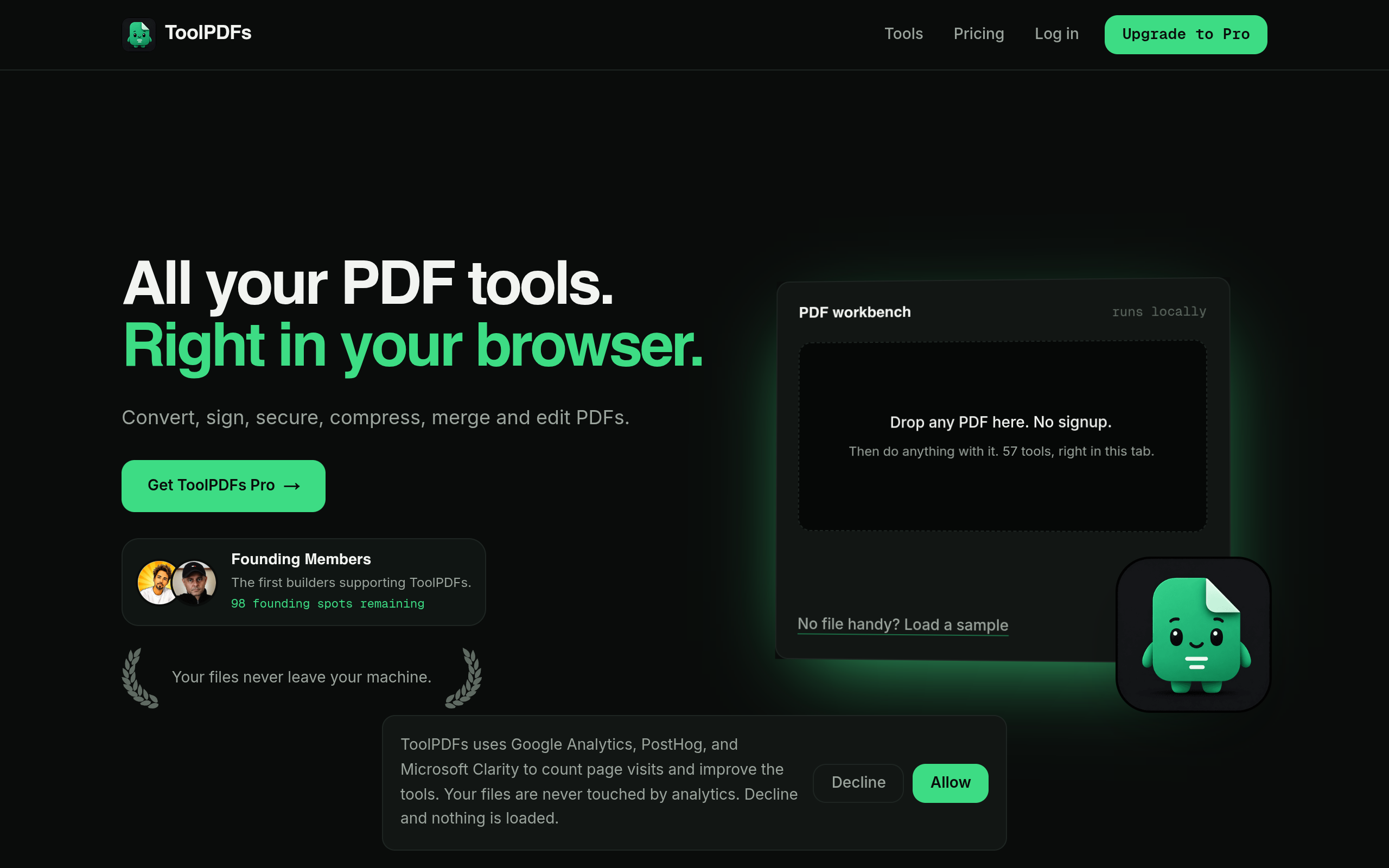
As the comparison above makes clear, the tools that save the most time are usually the ones that skip the upload-and-download round trip altogether — and that same local-processing approach is also what keeps a file from ever leaving your device. ToolPDFs is built around that overlap: a browser-based workspace with 57 free and paid tools for compressing, converting, organizing, and securing PDFs, where files are processed locally rather than sent to a server. That combination is aimed at freelancers, developers, and small business professionals who need quick, no-signup document work without handing sensitive files to a third party. A free daily usage allowance covers occasional compression needs, with monthly, annual, and lifetime plans available for anyone running this kind of work regularly.
Try It In Your Browser
Compress PDF Privately
Reduce PDF file size quickly with zero server uploads and complete privacy.