 ToolPDFs
Document Security Best Practices: A Complete Guide to Protecting Sensitive Files
Learn document security best practices for encryption, secure handling, and safe file processing—plus a practical checklist to protect sensitive files.
Most advice on protecting documents stops at "use a strong password" and "don't email sensitive files." That's not wrong, but it skips the part that actually matters most: what happens to a file the moment you open it, convert it, sign it, or run it through a tool. A document sitting untouched on an encrypted drive is rarely the problem. The risk shows up during processing—when a file gets uploaded somewhere, cached on a server, logged in an analytics pipeline, or left in a browser's temp folder after a conversion job finishes.
This guide covers document security best practices from that angle: not just how to store a file safely, but how to keep it safe while it's actually being worked on, shared, or transformed.
Key Takeaways
- Document security fails most often during processing and sharing, not while a file is sitting idle in storage—know where your files travel, not just where they rest.
- Encryption matters in two distinct ways: encryption at rest (protecting a stored file) and encryption in transit (protecting a file while it moves across a network). You need both.
- Password-protecting a PDF is a weak control on its own; pair it with strong encryption, access limits, and metadata cleanup.
- Every third-party tool you upload a file to becomes part of your security perimeter—check what it does with the file, how long it keeps it, and whether it processes locally or on a remote server.
- A short, written document handling policy—covering naming, sharing, retention, and deletion—prevents more leaks than any single piece of software.
What Document Security Actually Covers
Document security is usually described as a single problem, but it's really three overlapping ones:
- Confidentiality — keeping unauthorized people from reading the content.
- Integrity — making sure the file hasn't been altered, corrupted, or tampered with.
- Availability — making sure the right people can still access the file when they need it, even under attack, hardware failure, or accidental deletion.
Most "document security tips" articles focus almost entirely on confidentiality—passwords, encryption, access control—and barely touch integrity or availability. That's a mistake. A contract that's been quietly altered after signing is arguably a bigger business risk than one that gets read by the wrong person, and a file that's technically "secure" but unrecoverable after a ransomware attack has failed at its actual job.
Where Documents Are Actually Compromised
In practice, document breaches rarely happen because someone cracked strong encryption. They happen at weaker points in the workflow:
- Upload and conversion tools that store files on a remote server, sometimes longer than users realize.
- Email attachments, which travel through multiple mail servers and often sit unencrypted in inboxes for years.
- Shared cloud links set to "anyone with the link" and never revoked.
- Local device caches, temp folders, and "Downloads" directories that never get cleared.
- Metadata embedded in the file itself—author names, edit history, GPS coordinates, tracked changes—that leaks information even when the visible content looks clean.
- Human error: sending the wrong attachment, CC'ing the wrong person, or forgetting to remove a password before forwarding a file.
The OWASP File Upload security guidance is written for developers building upload systems, but the underlying lesson applies to anyone choosing a tool: the moment a file leaves your device, you're trusting someone else's server, someone else's retention policy, and someone else's staff.
Document Security Best Practices Checklist
This table covers the practices that actually reduce risk, ranked roughly by how much protection they add relative to how easy they are to implement.
| Practice | Why it matters | How to apply it |
|---|---|---|
| Encrypt files at rest | Protects data if a device is lost, stolen, or improperly disposed of | Use full-disk encryption (BitLocker, FileVault) plus file-level encryption for especially sensitive documents |
| Use TLS for any transfer | Protects data while it moves across the internet | Confirm any site or tool uses HTTPS; never send sensitive files over plain HTTP or unencrypted FTP |
| Strip metadata before sharing | Removes hidden author, revision, and location data | Use a metadata-removal or "sanitize" step before sending externally |
| Limit access by role | Reduces the number of people who could leak or mishandle a file | Apply least-privilege sharing—give view-only or time-limited access instead of full edit rights by default |
| Set expiration on shared links | Prevents old links from becoming permanent open doors | Use link expiration or revoke access once a project ends |
| Verify tool data-handling policy | A file uploaded to a third-party service is only as safe as that service's practices | Check whether a tool processes files locally or uploads them, and how long copies are retained |
| Use strong, unique passwords for protected files | Weak or reused passwords defeat encryption entirely | Use a password manager to generate and store unique passwords per file or client |
| Maintain a retention and deletion schedule | Files kept longer than necessary are pure liability | Define how long documents are kept before secure deletion |
| Log and audit document access where possible | Makes it possible to detect and investigate unauthorized access | Use tools or platforms that provide access logs for shared or signed documents |
Understanding Document Encryption Methods
Encryption is the technical backbone of document security, but the terminology gets used loosely. It helps to separate it into a few concrete categories.
Encryption at Rest vs. Encryption in Transit
- At rest protects a file while it's stored—on a hard drive, a USB stick, or a cloud server. Full-disk encryption (BitLocker on Windows, FileVault on macOS) and file-level encryption (password-protected PDFs, encrypted ZIP archives) both fall here.
- In transit protects a file while it's moving across a network—during upload, download, or email transmission. This is handled by protocols like TLS, the same technology behind the padlock icon in a browser's address bar.
A file can be strongly encrypted at rest and still be exposed if it's transmitted without TLS, or vice versa. Both layers are necessary; neither substitutes for the other.
Symmetric vs. Asymmetric Encryption
- Symmetric encryption uses a single key to both encrypt and decrypt. It's fast and is what's typically used to actually encrypt the file content—AES-256 is the current standard used by most password-protected PDF and ZIP implementations.
- Asymmetric encryption uses a public/private key pair. It's slower but solves the problem of securely sharing a key in the first place, and it's what underlies digital signatures and most secure email standards (PGP/GPG, S/MIME).
Most real-world document encryption—like PDF password protection—uses symmetric encryption for the content and, in more advanced setups, asymmetric encryption to manage or exchange keys.
PDF-Specific Encryption
PDF has built-in encryption standards that have evolved over the years. Older PDFs may still use weaker 40-bit or 128-bit RC4 encryption, which is now considered breakable with modern hardware. Current best practice, reflected in Adobe's own documentation on PDF security, is AES-256 encryption with a strong, unique password—not just a "user password" for opening the file, but ideally combined with permission restrictions on printing, copying, and editing.
One nuance worth knowing: a PDF "open" password and a PDF "permissions" password are different things. An open password prevents viewing entirely. A permissions password only restricts actions like printing or copying within a viewer that respects those restrictions—it does not stop someone with basic tools from removing those restrictions if the content itself isn't encrypted. Don't confuse the two when deciding how much protection a document actually has.
Secure Document Handling During Processing
This is the step almost every generic "document security tips" list skips: the moment you actually do something with a file—convert it, compress it, merge it, redact it, or sign it.
Every time a document passes through a tool, one of two things happens:
- Local processing — the file is handled entirely on your own device, inside your browser or an installed application, and never leaves your machine.
- Server-side (cloud) processing — the file is uploaded to a remote server, processed there, and then a result is sent back to you.
Both models can be implemented securely or poorly, but they carry fundamentally different risk profiles.
| Factor | Local (in-browser) processing | Server-side (cloud) processing |
|---|---|---|
| Where the file travels | Stays on your device | Uploaded over the network to a remote server |
| Exposure window | Limited to your own machine's security | Depends on the provider's server, staff access, and retention policy |
| Speed for small/medium files | Often instant, no upload wait | Limited by upload/download bandwidth |
| Offline capability | Can work without an internet connection once loaded | Requires a live connection |
| Best suited for | Sensitive contracts, legal, medical, financial, or client documents | Tasks requiring heavy server-side compute (large-scale OCR, AI processing) that a browser can't handle alone |
| What to verify | That the tool genuinely doesn't transmit the file (check its stated data handling, not just marketing copy) | Retention period, encryption in transit and at rest, and whether the provider can view or is contractually barred from viewing your files |
For most everyday PDF tasks—merging, compressing, converting, redacting, password-protecting—there's no technical reason a file needs to leave your device at all. When a tool does require server-side processing, treat the upload the same way you'd treat sending an email attachment: confirm it's over HTTPS, understand the provider's retention policy, and avoid it for anything you wouldn't be comfortable emailing to a stranger.
Confidential Document Handling in Practice
For freelancers, small teams, and solo professionals handling client contracts, financial records, or personal data, a few habits do most of the heavy lifting.
Access Control Without Overcomplicating It
You don't need enterprise identity management to apply least-privilege access. In practice this means:
- Share view-only links by default; grant edit access only when it's actually needed.
- Avoid sending the same password-protected file to multiple recipients using one shared password—if it leaks, you can't tell who leaked it.
- Revoke or expire shared links once a project closes out.
Redaction Done Correctly
A common and dangerous mistake is "redacting" a PDF by drawing a black box over text in a viewer. The underlying text often remains selectable, searchable, or extractable, which has led to real-world exposure of supposedly redacted legal and government documents. Proper redaction removes the underlying data, not just the visual layer—this is a distinct feature from simple annotation, and it's worth confirming a tool actually does this before relying on it for anything sensitive.
Watermarking and Version Tracking
Watermarking a document with a recipient's name or a timestamp doesn't prevent leaks, but it creates accountability and can deter casual redistribution. Combined with version tracking—knowing which copy of a contract is the final, signed one—it also protects document integrity, not just confidentiality.
Digital Signatures vs. Simple E-Signatures
A scanned image of a signature pasted onto a PDF proves almost nothing. A proper digital signature, based on public-key cryptography, cryptographically ties the signature to the exact document content—if even one character changes afterward, the signature becomes invalid. For anything legally significant, that distinction matters more than most people realize.
File Security Best Practices for Developers and Technical Users
Developers and technical freelancers face a slightly different set of risks, often involving files that pass through code, APIs, or automated pipelines rather than manual sharing.
- Never log full file contents or filenames containing sensitive data in application logs—this is a surprisingly common source of accidental data exposure.
- Validate file types server-side, not just by file extension, when building or using upload features; extension spoofing is a well-documented attack vector covered in OWASP's file upload guidance linked above.
- Scrub temporary files created during processing pipelines; a "temporary" file that isn't deleted is functionally a permanent, unencrypted copy.
- Treat API keys and credentials embedded in config files or exports as sensitive documents in their own right—they're often overlooked in document security policies entirely.
- Use checksums (SHA-256) to verify file integrity after transfer or processing, especially for compliance-sensitive documents where tampering needs to be provably absent.
The Hidden Risk: Metadata
Every document carries a shadow of information beyond its visible content. Word documents track edit history and author names. PDFs store creation and modification dates, software versions, and sometimes GPS data from scanned images. Spreadsheets can retain formulas and comments long after cells are "cleared" visually.
Before sharing anything sensitive externally, it's worth checking (and stripping) this metadata—particularly for legal filings, job applications, or any document being sent to someone outside your organization. This step is cheap, fast, and almost universally skipped.
Building a Simple Document Security Policy
Most individuals and small teams don't need a 40-page compliance document. A short, practical policy covering five things covers most real-world risk:
- Classification — a quick rule for what counts as "sensitive" (client financials, contracts, personal data, credentials) versus everyday files.
- Handling — how sensitive files get named, stored, and encrypted, and which tools are approved for processing them.
- Sharing — default sharing settings (view-only, expiring links, no public links) for sensitive categories.
- Retention — how long files are kept before deletion, and where deletion actually happens (including backups).
- Deletion — a note that deleting a file from a folder does not securely erase it from a drive; for real disposal, secure-delete tools or full-disk encryption (which makes the data unrecoverable once the encryption key is destroyed) are needed.
For organizations handling EU personal data, this policy also intersects directly with obligations under the GDPR, which requires "appropriate technical and organisational measures" for protecting personal data—language that, in practice, maps closely to the encryption, access control, and retention practices above. The NIST Cybersecurity Framework is a useful reference point even for small teams, since its core functions—identify, protect, detect, respond, recover—translate well to document-specific risk even outside a formal enterprise context.
Common Mistakes That Undermine Document Security
- Relying on a password alone, without underlying encryption, and assuming that's equivalent to real protection.
- Reusing the same password across multiple sensitive documents or client files.
- Assuming deleted means gone. Files moved to trash, or even permanently deleted from a filesystem, often remain recoverable until the disk space is overwritten.
- Trusting a tool because it's popular, not because its actual data-handling practices have been checked.
- Treating security as a one-time setup rather than an ongoing habit—access permissions and shared links accumulate and go stale if nobody revisits them.
The single most avoidable error, though, is the unnecessary upload: sending a sensitive file to a third-party service that doesn't need to store it at all, when the same task could have been done without the file ever leaving the device. Every additional hop a document takes across the internet is another place it can be logged, cached, or exposed—independent of how strong its encryption is.
Frequently Asked Questions
What's the safest way to send a confidential PDF to someone else?
Encrypt the file with a strong AES-256 password, share the password through a separate channel (not the same email), strip metadata first, and use an expiring or view-only link rather than a permanent public one.
Is password-protecting a PDF enough on its own?
Not fully—an open password prevents casual viewing, but real protection depends on the underlying encryption strength (AES-256 is current best practice) and on not reusing weak or shared passwords across multiple files.
Does deleting a file actually remove it from a device?
No. Standard deletion typically just removes the file's reference in the filesystem; the data often remains recoverable until that disk space is overwritten, which is why secure-delete tools or full-disk encryption matter for real disposal.
What's the difference between encryption at rest and encryption in transit?
Encryption at rest protects a stored file (on a drive or server); encryption in transit protects it while moving across a network, typically via TLS. Both are needed—one doesn't substitute for the other.
Are online document tools safe for sensitive files?
It depends entirely on how the tool handles the file: some upload and process files on a remote server, while others process everything locally in the browser without transmitting the file at all—checking which model a tool uses is the single most important factor before uploading anything sensitive.
Why the Upload Step Is the One Worth Eliminating
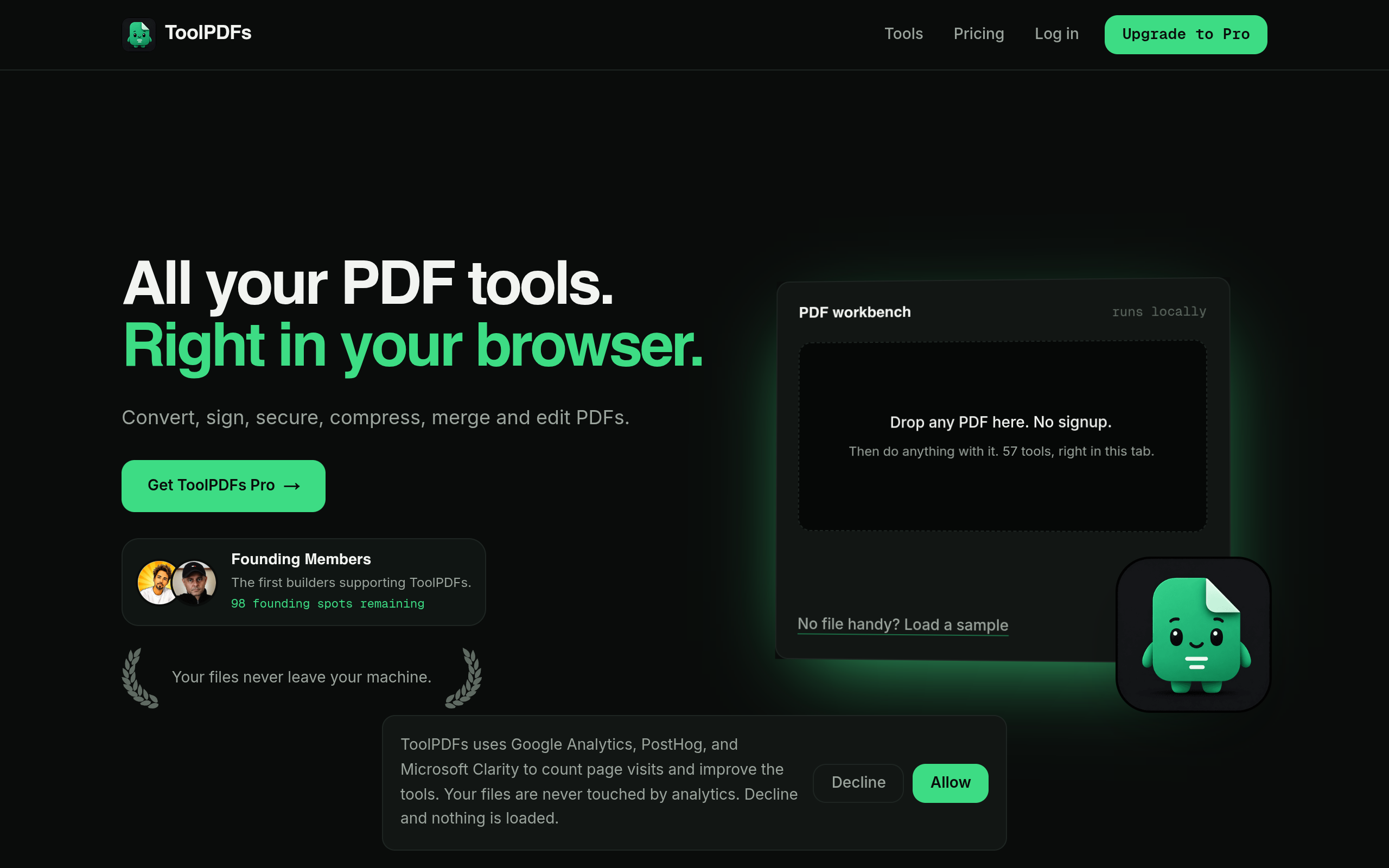
That unnecessary upload step—sending a file to a server that never needed to see it—is exactly the risk this workspace is built around avoiding. ToolPDFs runs its 57 conversion, organizing, compression, and signing tools directly in the browser, so files are processed on your own device rather than sent to a remote server, which removes that extra hop entirely for everyday PDF work. That approach suits freelancers, developers, and small business professionals who need fast document handling without adding a third party into their data-handling chain. It's available with a free daily allowance for occasional use, alongside monthly, annual, and lifetime plans for anyone doing this kind of work regularly.
Try It In Your Browser
PDF to Word Converter
Convert PDF documents into clean Word DOCX format in your browser.