 ToolPDFs
The Best Tools for Organizing Documents in 2026: 11 Options Compared
A practical comparison of the best tools for organizing documents in 2026 — cloud drives, DMS platforms, PDF utilities, and a filing system you can build today.
Most "best tools for organizing documents" lists just rank the same five cloud storage apps and call it a day. That misses the real question people are asking, which is usually some mix of: how do I stop losing files, how do I find a contract from eight months ago in under a minute, and which tool actually fits how I work — solo, on a team, or across a business with compliance requirements.
This guide breaks down the categories of tools that actually solve document chaos, compares them against each other honestly, and walks through the filing logic that makes any tool work better once you've picked one.
Key Takeaways
- There's no single "best" document organization tool — the right pick depends on whether you need cloud sync, enterprise compliance, PDF-specific editing, or a personal knowledge base.
- A tool only fixes disorganization if it's paired with a naming convention, a shallow folder structure, and a retention rule — software alone won't do that work for you.
- Document categorization software falls into three tiers: manual tagging, rules-based automation, and AI-assisted classification, and most small teams only need the first two.
- Privacy-conscious users and developers increasingly prefer local-first or browser-based tools that process files on-device rather than uploading them to a third-party server.
- Before comparing features, decide whether you're organizing active working documents or archival records — they need different tools and different retention treatment.
What "Organizing Documents" Actually Covers
"Document organization" gets used as a catch-all term, but it usually means one of four distinct jobs, and conflating them is why a lot of filing systems fail:
- Capture and digitization — turning paper, receipts, or scanned images into searchable digital files (this is where OCR matters).
- Storage and sync — keeping files backed up and accessible across devices, which is what Google Drive, Dropbox, and OneDrive are built for.
- Structure and retrieval — the folder hierarchy, naming conventions, tags, and metadata that let you or a colleague find a specific file fast.
- Lifecycle management — knowing when a document becomes inactive, when it needs to be archived, and when it can legally be deleted.
Most people only think about the second job (storage) and wonder why they still can't find anything. The tools below map to each of these jobs, not just to "storage."
How to Evaluate a Document Organization Tool
Before comparing named products, it helps to know what actually separates a good tool from a mediocre one for your specific situation.
| Criteria | Why it matters | Who should prioritize it |
|---|---|---|
| Full-text search / OCR | Lets you find text inside scanned PDFs and images, not just in filenames | Anyone dealing with scanned contracts, receipts, or invoices |
| Metadata and tagging | Lets you filter by client, project, or date instead of relying on folder guesswork | Freelancers juggling multiple clients or projects |
| Version history | Prevents overwritten drafts and lets you roll back changes | Teams collaborating on the same files |
| Local vs. cloud processing | Determines whether your files ever leave your device | Privacy-conscious users, legal and healthcare professionals |
| Automation / rules | Auto-sorts files by sender, type, or keyword so you're not filing manually | High-volume document workflows |
| Pricing model | Free tier limits, per-seat cost, or one-time licenses affect long-term cost | Small businesses and solo operators watching overhead |
The Best Tools for Organizing Documents, by Category
Cloud Storage and Sync: Google Drive, Dropbox, OneDrive, Box
These are the default answer for a reason. Google Drive, Dropbox, OneDrive, and Box all offer folder hierarchies, shared drives, basic tagging (via "stars" or color labels), and increasingly capable search — Google's Drive search, for instance, can read text inside scanned images. Google's own guidance on structuring shared drives is worth reading before you build a folder tree for a team, because shared-drive permissions behave differently from personal "My Drive" folders.
Where they fall short: none of them enforce retention rules, none do real document categorization beyond folders and stars, and version history, while present, isn't built around formal document control (no approval workflows, no audit trail suitable for compliance).
Best for: individuals and small teams who need reliable sync and sharing without heavy structure.
Enterprise Document Management Systems: SharePoint, M-Files, DocuWare
A dedicated document management system (DMS) exists specifically to solve retrieval and lifecycle problems at scale. Microsoft SharePoint remains the most widely deployed option inside organizations already on Microsoft 365, with metadata columns, content types, and retention labels that let admins define how documents get classified automatically rather than relying on individual employees to file things correctly.
M-Files and DocuWare go further with metadata-first architectures — instead of forcing files into a single folder, a document can be tagged with multiple attributes (client, contract type, expiration date) and surface in different "views" depending on what someone's looking for. That's a meaningfully different model from folder-based storage, and it's the closest thing to true document categorization software for regulated industries.
Best for: businesses with compliance obligations, audit requirements, or more than a handful of people touching the same document pool.
Personal Knowledge and Note Tools: Notion, Evernote, Obsidian
These aren't document management systems in the formal sense, but a lot of freelancers and solopreneurs use them as one — linking or embedding PDFs and files inside notes, databases, and project pages. Notion's database views (filter, sort, group by tag) function almost like a lightweight metadata system for anyone who's willing to log documents manually rather than relying on automatic classification. Evernote's strength is quick capture and OCR search across notes and attached files; Obsidian's is a local-first, plain-text approach that appeals to people who don't want their notes locked into a proprietary cloud format.
Best for: solo professionals who want organization tied to context (a project or client page) rather than a pure file tree.
PDF-Specific Organization Utilities
A huge share of "document organization" problems are really PDF problems: too many scanned pages in one file, contracts that need to be split apart, invoices that need consistent renaming before they go anywhere else. General-purpose storage apps don't solve this — you need tools built specifically to merge, split, rename in bulk, compress, and run OCR on PDFs before they're even worth filing.
This is a category where browser-based workspaces have become genuinely useful alternatives to installing desktop software. Tools like Adobe Acrobat, Smallpdf, and browser-based workspaces such as ToolPDFs all offer some version of merge, split, compress, and rename utilities; the meaningful differences are usually in whether files are uploaded to a server or processed locally, how many tools are bundled together, and whether there's a usable free tier before you need a paid plan.
Best for: anyone whose "organization" problem starts before storage — at the point where a document is still messy, oversized, or inconsistently named.
Local-First and Privacy-Focused Tools
A growing number of developers, legal professionals, and privacy-conscious users specifically look for tools that never send a file to a server at all. Browser-based tools that run entirely client-side — processing PDFs, images, or text directly in the browser tab rather than uploading them — offer a meaningfully different privacy posture than cloud-based competitors, since there's no upload step for a document to be intercepted, retained, or mined. It's worth checking a tool's about page or privacy documentation before trusting it with anything sensitive, since "free" and "cloud-based" often mean your files are the product.
Best for: developers, freelancers handling client NDAs, and anyone who doesn't want document content leaving their own machine.
Comparison Table: Document Organization Tools at a Glance
| Tool category | Example tools | Local/offline processing | Best for | Typical pricing model |
|---|---|---|---|---|
| Cloud storage & sync | Google Drive, Dropbox, OneDrive | No (cloud upload) | Sync across devices, sharing | Free tier + per-user monthly |
| Enterprise DMS | SharePoint, M-Files, DocuWare | No (server/cloud) | Compliance, audit trails, teams | Per-seat licensing |
| Personal knowledge tools | Notion, Evernote, Obsidian | Partial (Obsidian is local) | Context-linked notes and files | Free tier + subscription |
| PDF-specific utilities | Adobe Acrobat, Smallpdf, browser workspaces | Varies by tool | Fixing files before filing them | Free daily use + monthly/annual/lifetime |
| Local-first browser tools | Browser-based PDF/text workspaces | Yes, client-side | Privacy-sensitive documents | Free allowance + paid tiers |
Document Categorization Software: Manual Tags vs. Rules vs. AI
Once you're past a handful of files, the question becomes how documents get sorted, not just where. There are three real approaches:
- Manual tagging — you or your team assign categories, clients, or project labels by hand. Accurate but doesn't scale past a small volume before people get lazy about it.
- Rules-based automation — "if this file comes from this sender, or contains this keyword, or matches this naming pattern, put it in this folder/tag." This is what most DMS platforms and even email-to-file automations (Zapier, Power Automate) rely on. It's predictable and auditable, which matters for compliance.
- AI-assisted classification — newer tools attempt to read document content and infer category, sender, or type automatically. It can save time on high-volume, repetitive document types (invoices, receipts), but it's less predictable and worth spot-checking, especially for anything with legal or financial consequences.
Most freelancers and small teams get 90% of the benefit from rules-based automation plus consistent manual tagging at the point of filing — the AI layer matters more once volume gets into the hundreds of documents per week.
Building a Filing System That Survives Contact With Reality
The tool matters less than most people assume. A well-chosen filing structure works in Dropbox, Google Drive, or a $9 note app; a bad structure fails no matter how expensive the software is. Here's a framework that holds up in practice:
- Cap folder depth at three or four levels.
Clients > ClientName > Yearis searchable.Clients > ClientName > Projects > 2024 > Q3 > Invoices > Finalis not — by the time you're four folders deep, you've already lost more time navigating than you would have spent searching. - Standardize file names, not just folders. A pattern like
YYYY-MM-DD_ClientName_DocType_v2.pdfsorts chronologically, is searchable by any field, and survives being moved out of its original folder — which matters because files get moved, emailed, and downloaded more than people expect. - Separate active from archival documents. Active documents belong wherever you work day to day; anything closed out, expired, or purely historical should move to a separate archive so your working folders don't accumulate dead weight.
- Set retention periods deliberately, not by accident. Tax and business records in the US generally need to be kept for a minimum period — the IRS outlines specific retention windows depending on the type of record and situation — and government agencies follow formal records management schedules for exactly this reason. Freelancers and small businesses don't need a formal schedule, but they do need a rule ("keep tax documents for 7 years, delete expired quotes after 1") rather than keeping everything forever by default.
- Fix the file before you file it. Split multi-contract PDFs apart, run OCR on scanned pages so they're searchable, and rename files consistently before they land in a folder. This single step — often handled with a quick tool like the ones in a general document utility library — prevents most of the mess that makes folders unsearchable in the first place.
Common Mistakes When Organizing Digital Documents
- Filing by "type" instead of by "purpose." A folder called "PDFs" tells you nothing; a folder called "Client Contracts — Active" tells you exactly what's inside and why it's still there.
- Relying on search instead of structure entirely. Full-text search is powerful, but it fails on scanned images without OCR and on documents where the important identifying detail (a client name, a date) isn't in the visible text.
- Never revisiting the archive. Retention only works if someone actually deletes or archives documents on schedule — a rule that exists but is never enforced isn't a rule.
- Mixing personal and work documents in the same drive without separation. This gets messy fast and creates real risk if the drive is ever shared, audited, or accessed by someone else.
- Picking a tool based on brand recognition instead of workflow fit. The most popular cloud drive isn't automatically the right one if your actual bottleneck is messy, oversized, or inconsistently formatted PDFs rather than storage itself.
Most of these mistakes aren't tool problems — they're maintenance problems. The tool you pick should make the correct behavior the easy behavior, because the discipline of keeping a filing system current is the part that actually determines whether it works six months from now.
FAQ
What's the single best tool for organizing documents?
There isn't one — a solo freelancer's best tool is usually a cloud drive with a consistent naming convention, while a regulated business needs a real DMS with metadata and retention controls. Match the tool to the job (storage, compliance, or fixing messy PDFs), not the other way around.
Is Google Drive enough, or do I need dedicated document management software?
Google Drive (or Dropbox/OneDrive) is enough for most individuals and small teams handling sync and basic sharing. You need dedicated document management software once you have compliance requirements, need audit trails, or manage document volume that manual folders can't keep up with.
How do I organize digital documents that are already a mess?
Start by consolidating everything into one location, then batch-process the obvious fixes first — split combined PDFs, run OCR on scans, and rename files with a consistent pattern — before you start building folders, since a clean naming pass makes the sorting step far faster.
What is document categorization software, exactly?
It's software that assigns documents to categories automatically, either through predefined rules (sender, keyword, file type) or AI-based content analysis, rather than requiring someone to manually tag every file.
Are browser-based document tools safe for sensitive files?
It depends entirely on whether the tool processes files locally in your browser or uploads them to a server — local, client-side processing means the file never leaves your device, which is a meaningfully different privacy model than most cloud-based tools.
When the Filing System Depends on Trusting Someone Else's Server
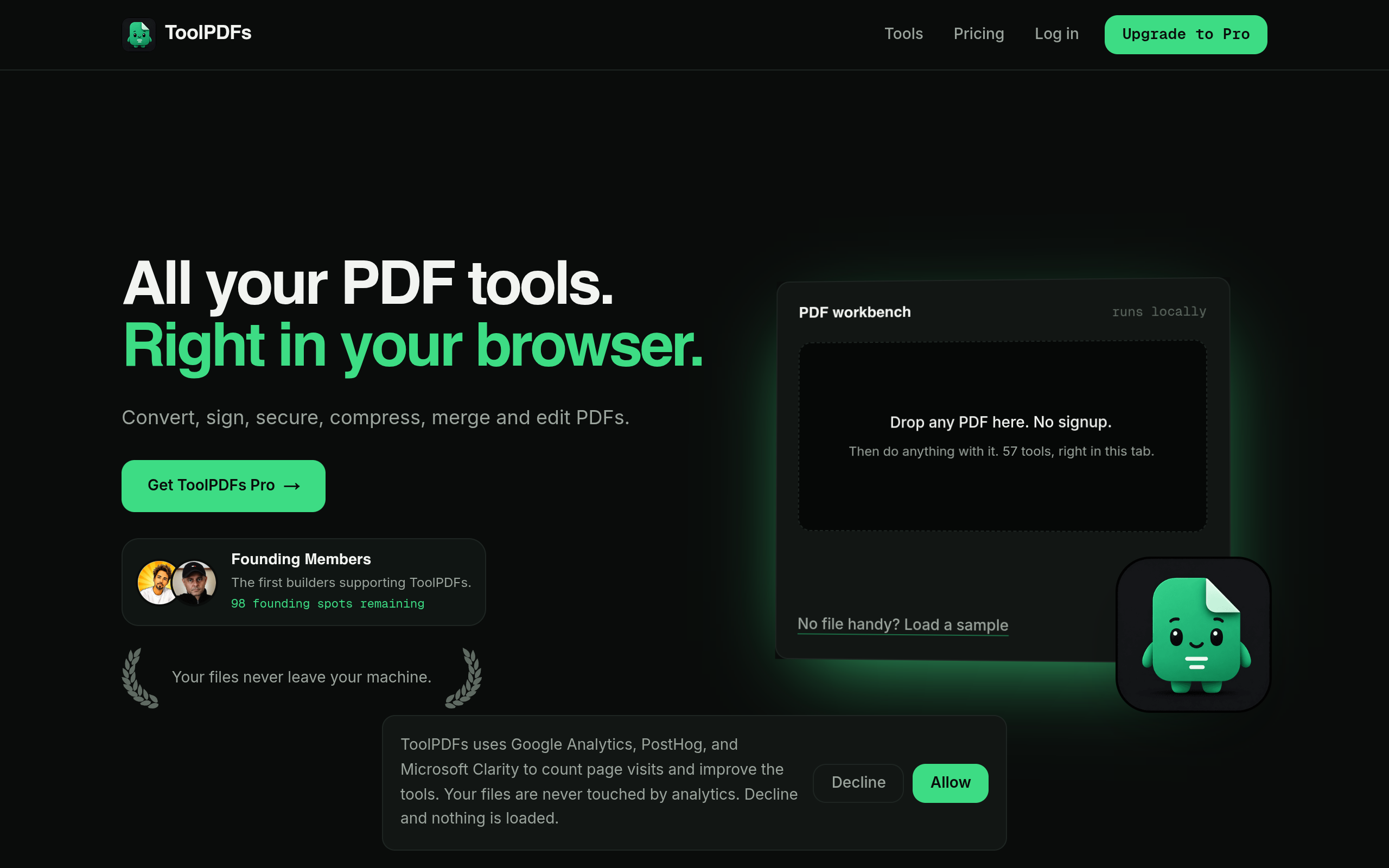
That maintenance discipline gets a lot easier when the tool itself doesn't add another layer of risk — specifically, when your files never have to leave your device just to get cleaned up before filing. ToolPDFs is a browser-based workspace with 57 free and paid tools for converting, organizing, compressing, signing, and securing PDFs, plus text, data, and developer utilities, and it processes files locally in the browser rather than uploading them to a server. That fits the exact moment described above — splitting, renaming, and OCR-ing documents before they land in a folder — without asking freelancers, developers, or privacy-conscious professionals to hand a scanned contract or client file to a third-party cloud service. It's built for quick, no-signup document work, with a free daily allowance and paid monthly, annual, and lifetime plans for people who need it regularly.
Try It In Your Browser
PDF to Word Converter
Convert PDF documents into clean Word DOCX format in your browser.